Device Authentication
Review and approve device authentication requests from bootstrapped agents, and manage bootstrap tokens.
A device authentication request is created when a Pult Agent enrolls with a bootstrap token. Admins review these requests in the Pult Dashboard to link each device to the right Pult user.
Sign-In and Bootstrapping
A Pult Agent is linked to a Pult user in one of two ways:
- Manual sign-in: the employee clicks Sign In in the agent and confirms the sign-in in their browser with their own Pult account. No admin is involved, and nothing appears under Pending Device Requests.
- Bootstrapping: IT deploys a bootstrap token to the device. The agent uses it to create a device authentication request, and an admin accepts the request in the Pult Dashboard. The employee does not need to sign in.
How It Works
-
The agent creates a request with device information such as:
- Device name (the computer name set on the device)
- Operating system and version
- Device serial number
- OS username
- Pult Agent version
-
The request appears under Settings → Presence → Device Authentication, in Pending Device Requests, together with the IP address it came from and that address's approximate location.
-
An admin reviews the request and either accepts it, assigning a Pult user, or denies it.
-
Shortly after the request is accepted, the agent signs in and begins sending presence beacons. This requires the bootstrap token to still be active: a request whose token was revoked or has expired in the meantime cannot complete.
Automatic User Matching
If you have an MDM integration connected, Pult can suggest the matching user:
- Pult looks up the device's serial number in the MDM inventory.
- If the device is found, its assigned user's email belongs to a Pult user, and the match is unambiguous, that user is shown as the Detected User and is pre-selected in the review dialog.
- When your MDM data syncs, Pult checks recent pending requests again and fills in or changes the suggested user when it finds a match.
- An admin still accepts every request and can choose a different user.
Without MDM, or if no unambiguous match is found, the request shows Unknown as the detected user and the admin selects the user.
Reviewing Requests
Pending Device Requests
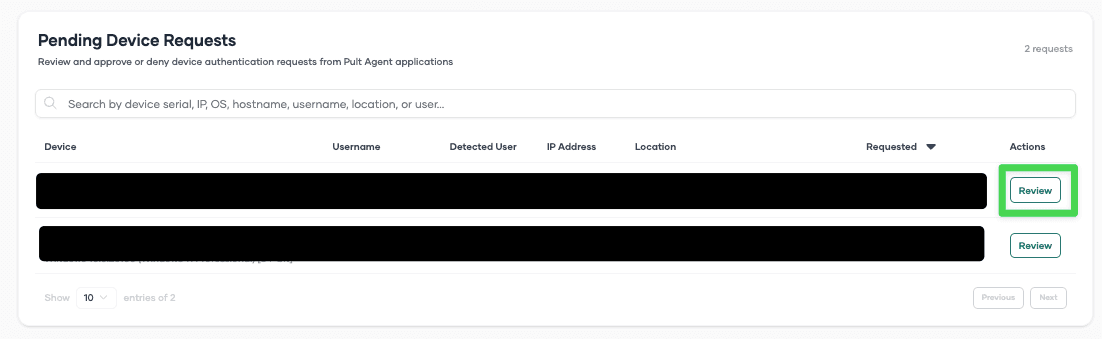
Go to Settings → Presence → Device Authentication. The Pending Device Requests section lists all requests awaiting review. For each request, you can see:
- The Pult Agent version, device serial number, and OS
- The OS username and device name
- The Detected User, if MDM matching found one
- The IP address and its approximate location
- When the request was made
- A colored dot showing how recently the agent checked in
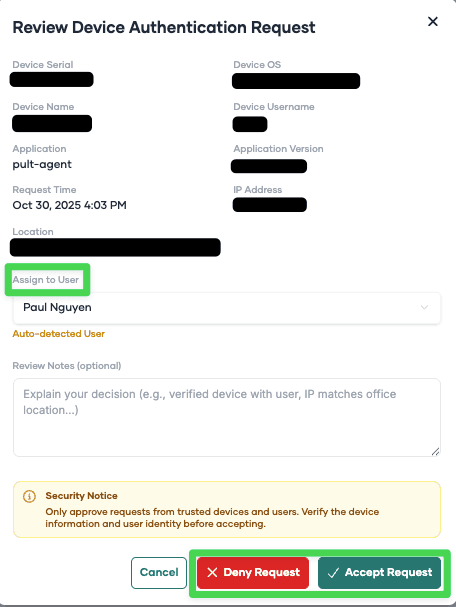
Click Review to open the review dialog:
- Check the device details.
- Under Assign to User, keep the pre-selected user or choose another one.
- Optionally, add a note under Review Notes (optional).
- Click Accept Request, or click Deny Request to reject the enrollment.
To handle several requests at once, select them and click Approve or Deny. Bulk approval assigns each device to its detected user and skips requests without one; review those individually.
Request History
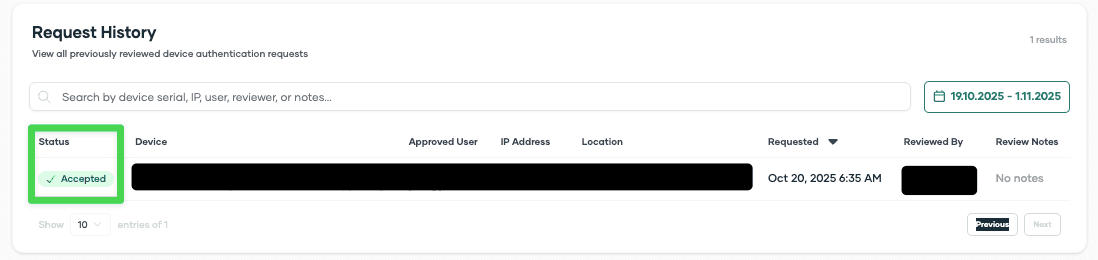
The Request History section lists accepted and denied requests for a date range you choose. By default it shows last week and this week; the range applies to the date of the request. For each request, it shows the device, the approved user, the IP address and location, when the request was made, who reviewed it, and the review notes.
Security notice: Device information such as OS, username, serial number, and device name can be spoofed. Only the IP address is reliably reported. Always verify that the request timing and IP address match expected devices in your organization before approving.
Bootstrap Tokens
The Device Authentication page also includes the Bootstrap Tokens section, where you create, view, and revoke tokens. See Bootstrap Token Deployment for details.
Last updated on