Installation Guide
Step-by-step instructions for manually installing the Pult Agent on macOS, Windows, and Linux.
This guide covers manual installation of the Pult Agent. For automated deployment via MDM, see MDM Deployment.
Download
Download the Pult Agent installer from the Pult Agent download folder. Pick the file for your platform:
| Platform | File |
|---|---|
| macOS | Pult_Agent_<version>_MacOS_universal.pkg (recommended) |
| Windows | Pult_Agent_<version>_Windows_x64_en-US.msi or …_Windows_arm64_en-US.msi for ARM |
| Linux | Pult_Agent_<version>_Linux_amd64.deb |
The folder also contains a macOS .dmg. It does not set up launch at login; see
Choosing a macOS Installer.
macOS
- Double-click the downloaded
.pkgand follow the installer. Enter an administrator password when asked. - Open Pult Agent from the Applications folder (or Spotlight). You only need to do this once: from the next login on, the agent starts automatically.
- The Pult Agent icon (P) appears in the menu bar.
- Click the icon and select Sign In.
- Your browser opens. Sign in with your Pult account.
- After authentication, the agent is linked to your account. The tray menu shows your sign-in status.
macOS may notify the user that a background item was added. This is the Pult Agent's launch at login. To keep users from switching it off, deploy a managed login item through your MDM.

Choosing a macOS Installer
.pkg (recommended) | .dmg | |
|---|---|---|
| Starts at login | Yes | No; open the agent after every restart |
| Works with managed login items | Yes | No |
| Leaves a package receipt for MDM audit scripts | Yes | No |
| Intended for | Every Mac, manual or MDM | Quick individual tests |
Alternative: Install From the .dmg
On macOS, only the Pult Agent .pkg (0.2.10 or later) sets up launch at login. A managed login
item keeps users from switching it off; it does not start the agent. See macOS
Auto-Start.
- Open the downloaded
.dmgfile. - Drag Pult Agent into the Applications folder.
- Open Pult Agent from the Applications folder. Repeat this after every restart.
- Click the menu bar icon and select Sign In.
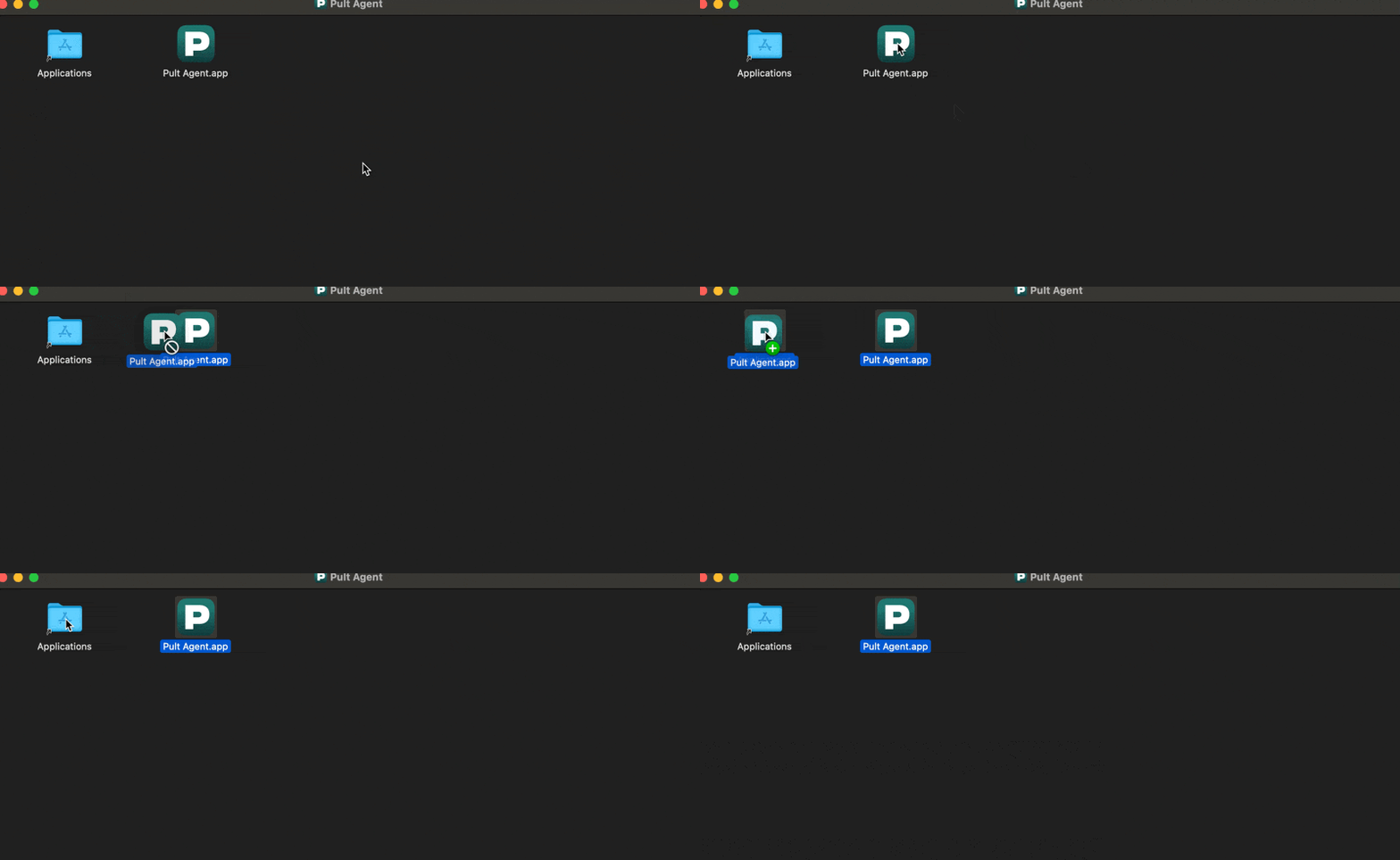
To get launch at login later, install the .pkg over the existing app. Signed-in users stay signed
in.
Windows
- Run the downloaded
.msiinstaller. - Follow the installation wizard. The default installation path is
C:\Program Files\Pult Agent. - After installation, the Pult Agent starts automatically (or starts on next login).
- The Pult Agent icon (P) appears in the system tray (notification area).
- Click the icon and select Sign In.
- Your browser opens -- sign in with your Pult account.
- After authentication, the agent is linked to your account.
Linux
Linux support is currently available for x86_64 architecture only. ARM-based devices are not supported.
System Requirements
- Ubuntu 24.04+ or Debian 13+
- GTK 3
- WebKitGTK 4.1
libayatana-appindicator3-1(for system tray support)
Installation
- Install the downloaded
.debpackage:
sudo dpkg -i pult-agent_*.deb- If dependencies are missing, resolve them:
sudo apt-get install -f- Launch the Pult Agent from your application launcher or run
pult-agentfrom the terminal. - Click the tray icon and select Sign In to authenticate via the browser.
Verifying Presence Detection
After signing in:
- Click the Pult Agent tray icon.
- If you're connected to a configured office network, the menu shows your current office location name.
- In the Pult Dashboard, navigate to Presence Dashboard -- your presence should appear within a few minutes.
Sign-In Details
- Sign-in is a one-time process. The agent stores your credentials securely in the OS keychain (macOS) or Credential Manager (Windows).
- The agent refreshes your access token automatically -- no periodic re-authentication is needed.
- If your token expires or is revoked, the agent will prompt you to sign in again.
Troubleshooting
| Issue | Solution |
|---|---|
| Tray icon (P) is not visible | Make sure the app is running. On Windows, check the hidden icons area in the taskbar. On macOS, check System Settings for menu bar overflow. |
| "Unknown Office Location" in tray | Your current network doesn't match any configured presence location. Verify the presence location subnets include your office's public IP. |
| Sign-in page doesn't open | Check that your default browser is working and that app.pult.com is reachable. |
| Agent is gone after a restart (macOS) | The agent was installed from the .dmg, which does not set up launch at login. Install the .pkg; see macOS Auto-Start. |
For more detailed troubleshooting, see the Troubleshooting page.
Last updated on Sep 25, 2026, 12:14 PM