macOS Auto-Start
How the Pult Agent starts at login on macOS. The .pkg sets up launch at login, and a managed login item keeps users from switching it off.
On macOS, auto-start has two parts. The Pult Agent .pkg sets up launch at login, and a managed
login item deployed through your MDM keeps users from switching it off.
How Auto-Start Works on macOS
| Part | Provided by | What it does | Without it |
|---|---|---|---|
| Launch at login | The Pult Agent .pkg, version 0.2.10 or later | Starts the agent at every user login, for every account on the Mac. | The agent runs only when opened manually and is gone after a restart. |
| Managed login item | An MDM configuration profile with the bundle identifier com.pult.agent | Marks the agent as managed by your organization, so users can't switch it off. | Launch at login still works, but macOS notifies the user about the new background item and the user can switch it off in Login Items. |
A managed login item does not install or start anything. On a Mac where the agent was installed
from the .dmg, or from a .pkg older than 0.2.10, there is nothing for the profile to manage
and the agent does not start at login. Install the current .pkg over the existing app to fix
this; signed-in users stay signed in.
Which Installers Set Up Launch at Login
| Installer | Launch at login |
|---|---|
Pult Agent .pkg, 0.2.10 or later | Yes |
Wrapper .pkg built with Build the macOS MDM Package or the In-Browser PKG Builder | Yes |
Pult Agent .pkg, 0.2.9 or earlier | No |
.dmg | No |
The .pkg installs a system-wide LaunchAgent at /Library/LaunchAgents/com.pult.agent.plist. The
.dmg contains only the app. Get the .pkg from Download.
Check a Mac Before You Enforce
Run on the Mac:
/usr/sbin/pkgutil --pkg-info com.pult.agent
ls -l /Library/LaunchAgents/com.pult.agent.plistpkgutilprints the package receipt. Theversion:line must show 0.2.10 or later (a wrapper.pkgbuilt with a version override shows that override instead). If it printsNo receipt for 'com.pult.agent' found at '/'., the agent was not installed from a.pkg.- The LaunchAgent file must exist and be owned by
rootandwheel. This is the check that decides: without the file, the agent does not start at login.
To check your whole fleet, use the detection script in
Version Detection with REQUIRE_PKG_RECEIPT="true",
or the Extension Attribute in
Jamf Pro Deployment.
Enforce With a Managed Login Item
Deploy a configuration profile that adds the bundle identifier com.pult.agent as a managed
login item. The rule matches the LaunchAgent that the .pkg installs.
Microsoft Intune
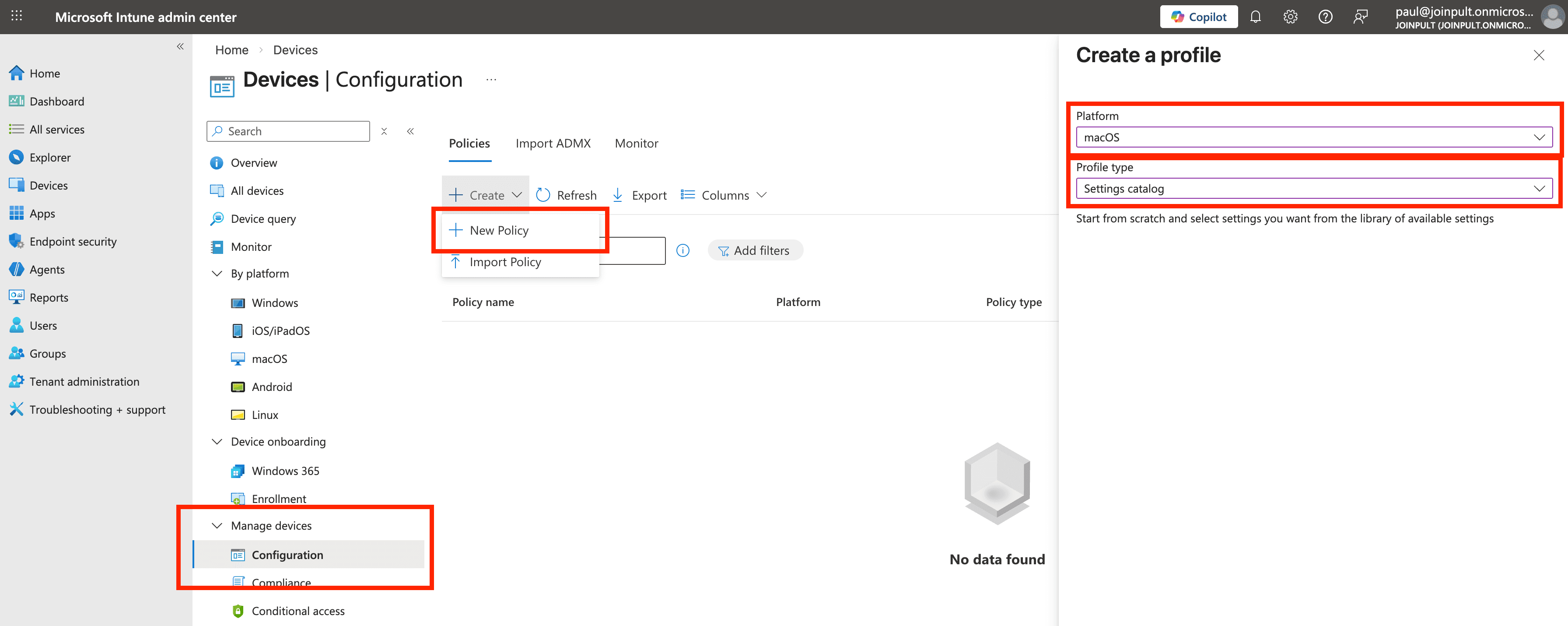
- In the Microsoft Intune admin center, open Devices → Configuration. Under Manage devices, click Create → New policy. Set Platform to macOS and Profile type to Settings catalog.
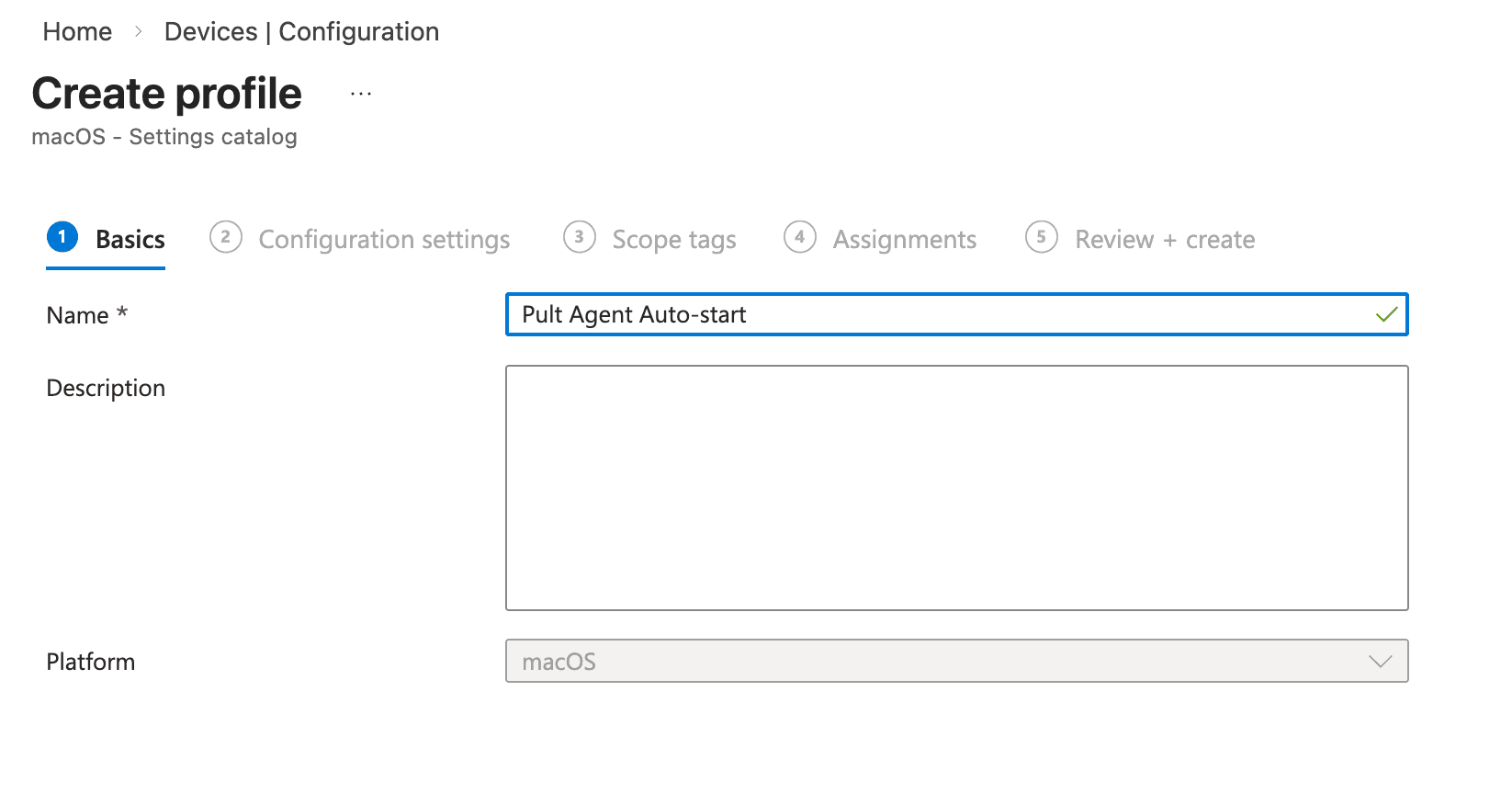
- On the Basics tab, enter a name such as Pult Agent Auto-start. Optionally add a description.
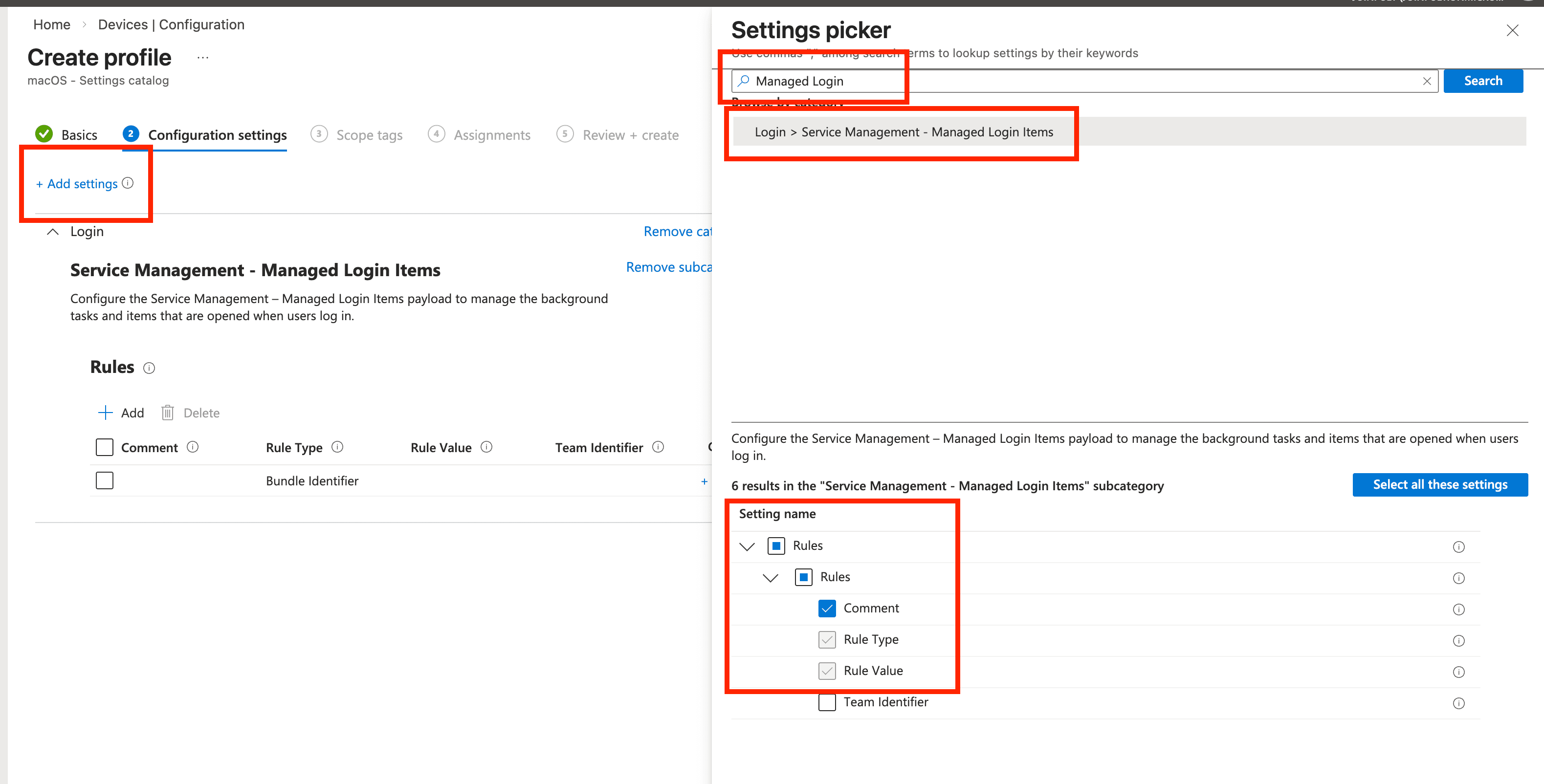
- On Configuration settings, click + Add settings. In the settings picker, search for Managed Login, then select Login → Service Management - Managed Login Items. Enable Comment, Rule Type, and Rule Value.
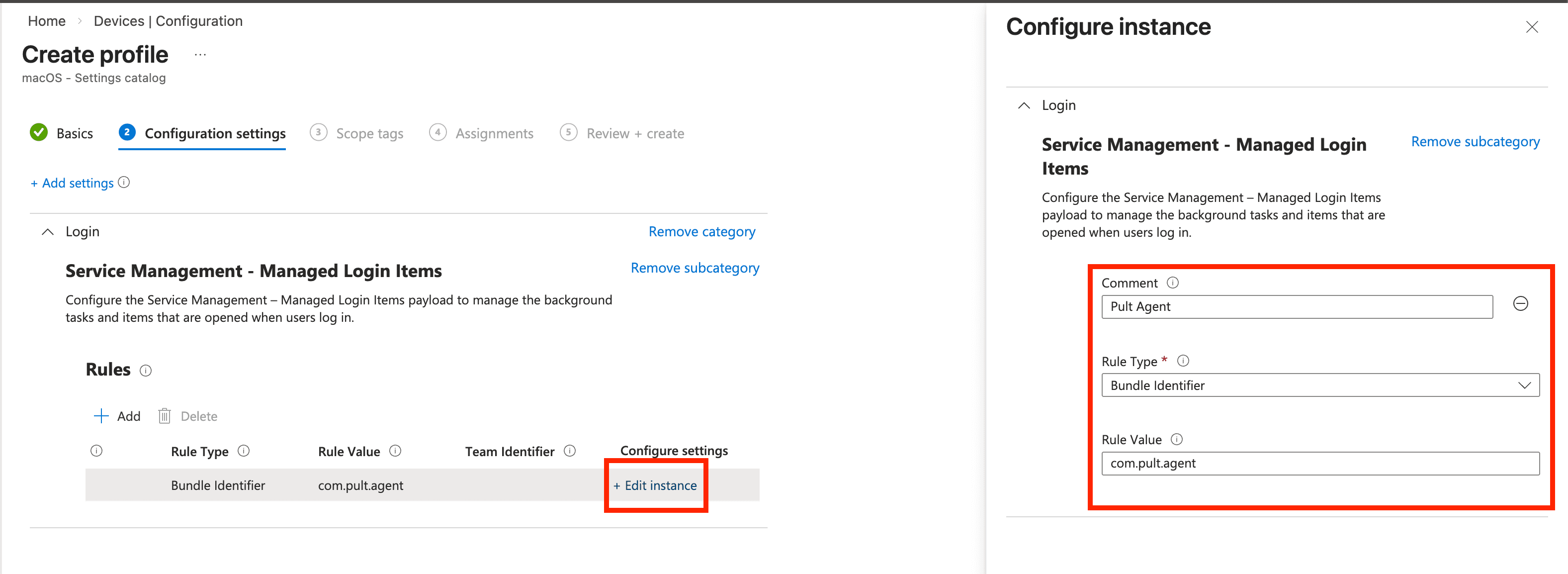
- Click + Edit instance and configure the rule:
- Comment:
Pult Agent - Rule Type: Bundle Identifier
- Rule Value:
com.pult.agent
- Comment:
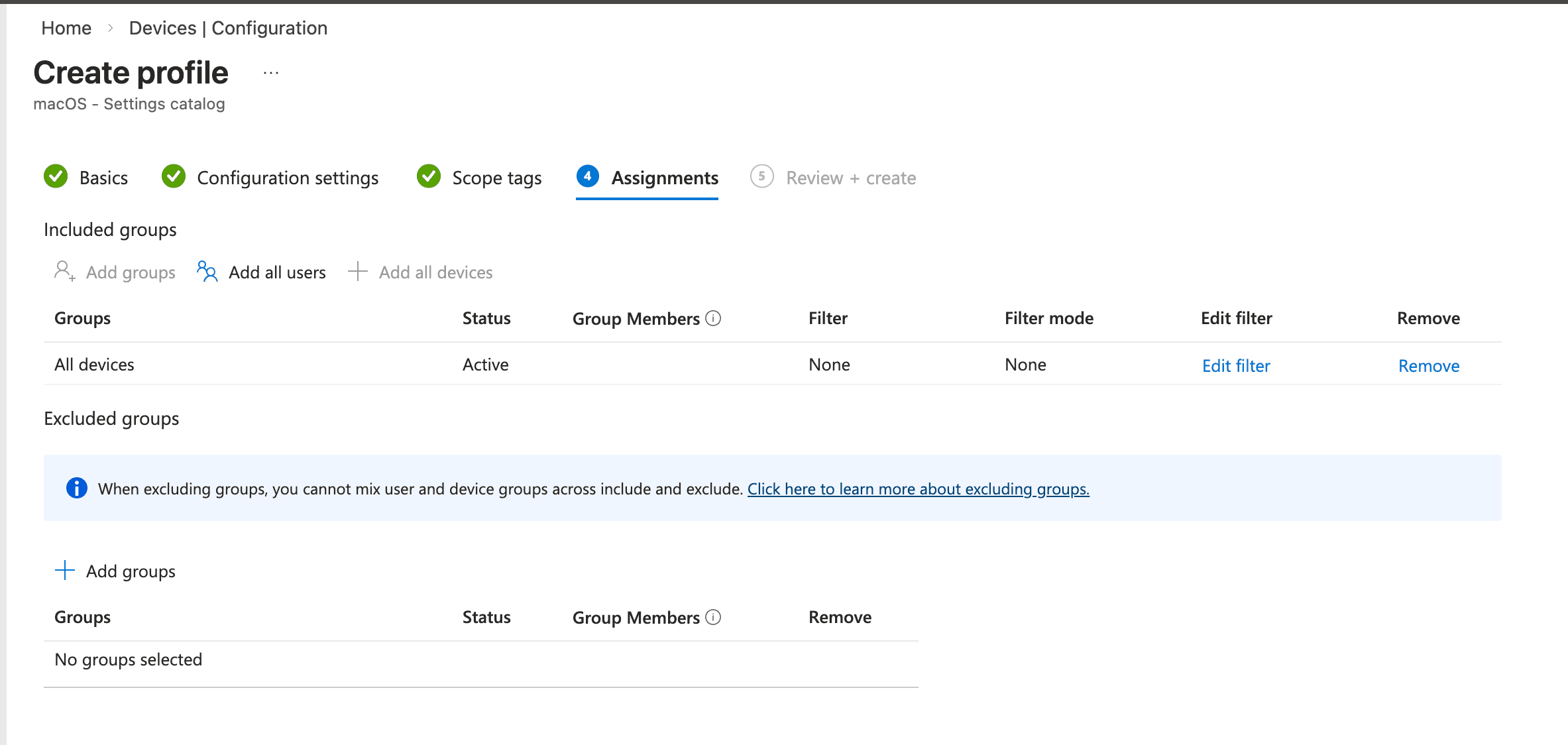
- Continue through Scope tags (optional). On Assignments, choose device or user groups (for example All devices). Finish Review + create.
Kandji
-
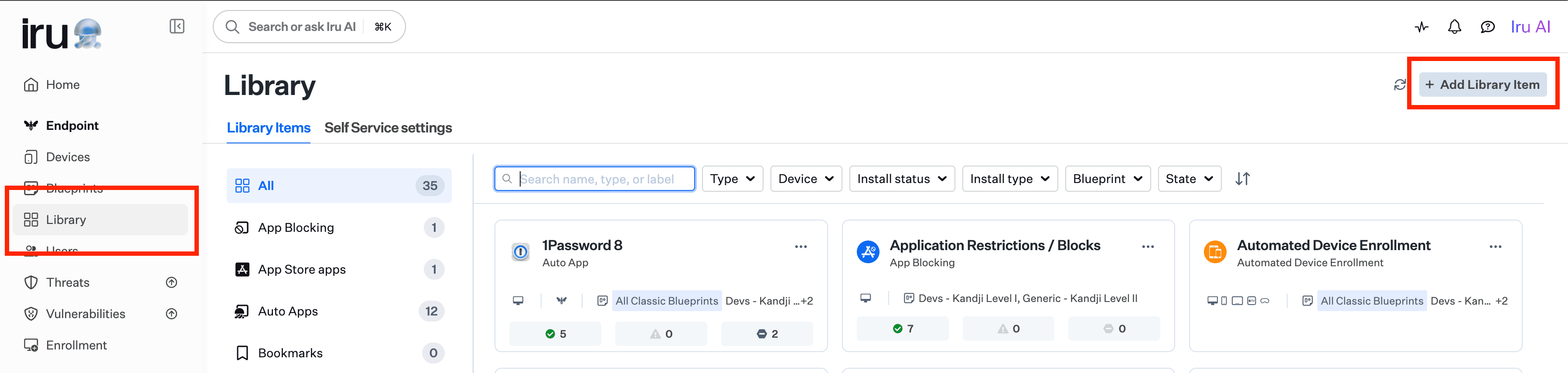
In Kandji, open Library and click + Add Library Item.
-
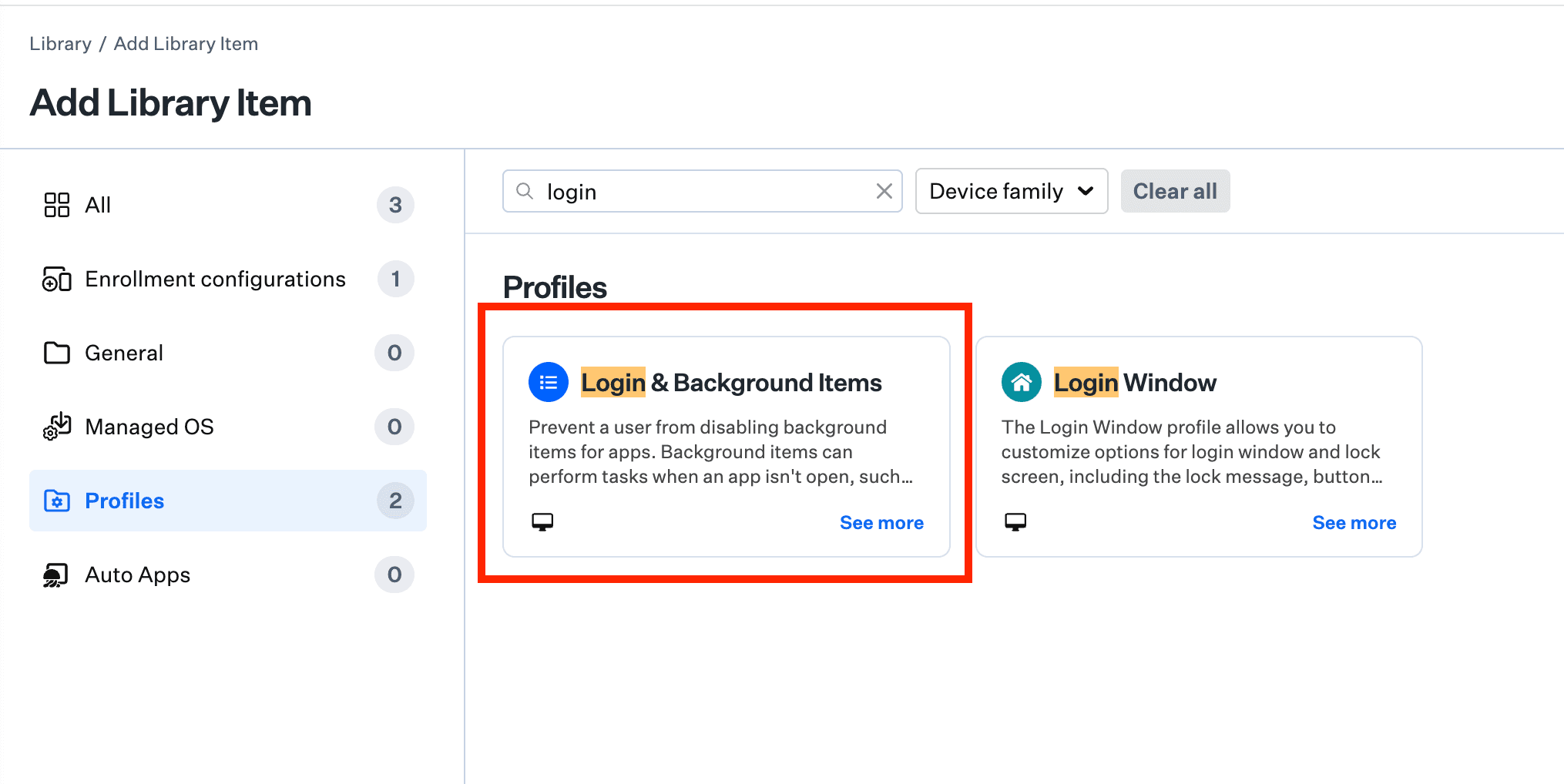
Search for login and pick Login & Background Items under Profiles.
-
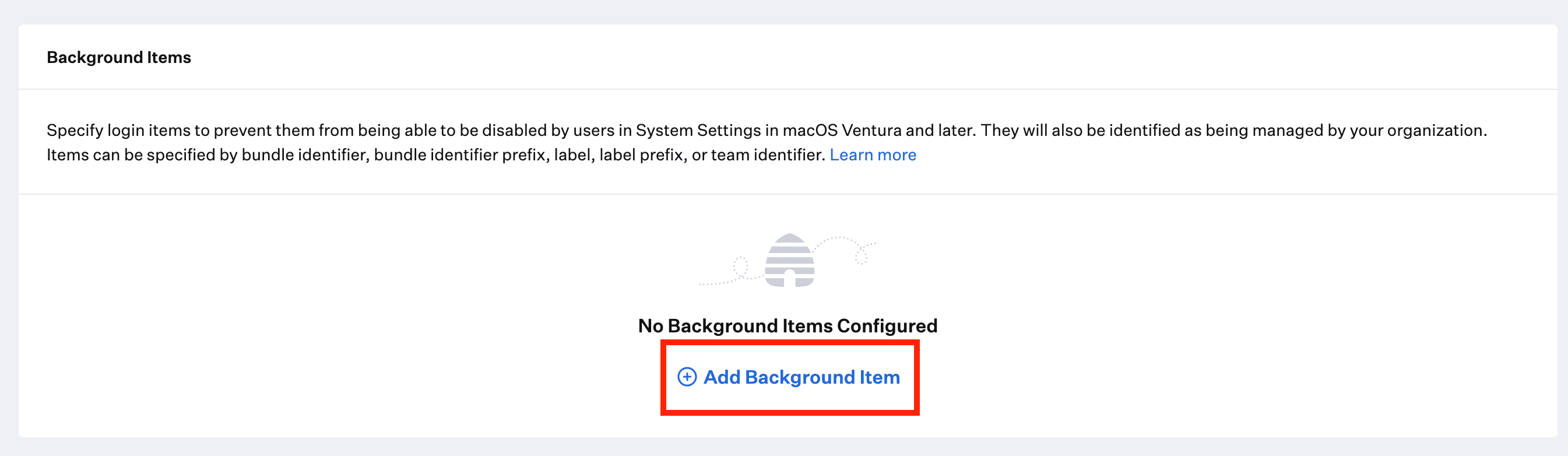
Scroll to Background Items and click Add Background Item.
-
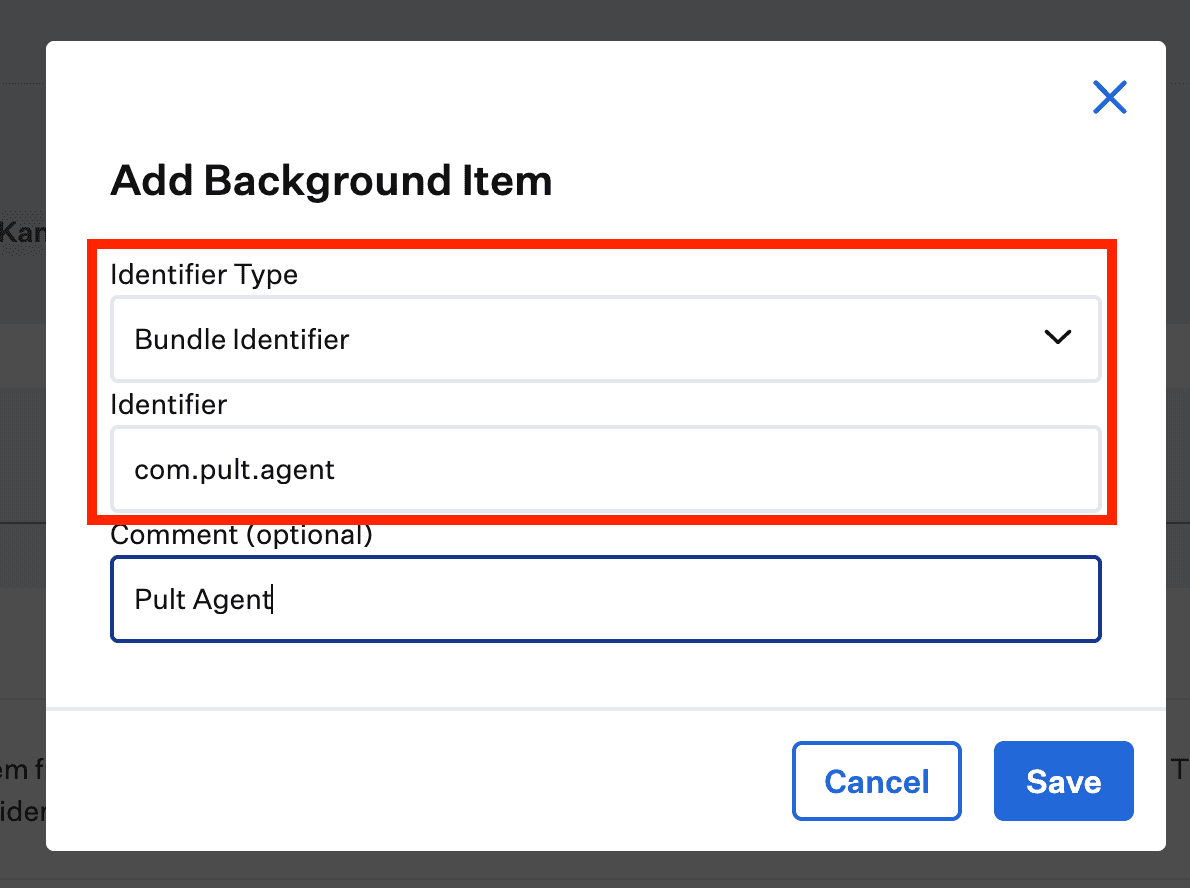
In the Add Background Item dialog, set:
- Identifier Type: Bundle Identifier
- Identifier:
com.pult.agent - Comment (optional):
Pult Agent
Save the dialog.
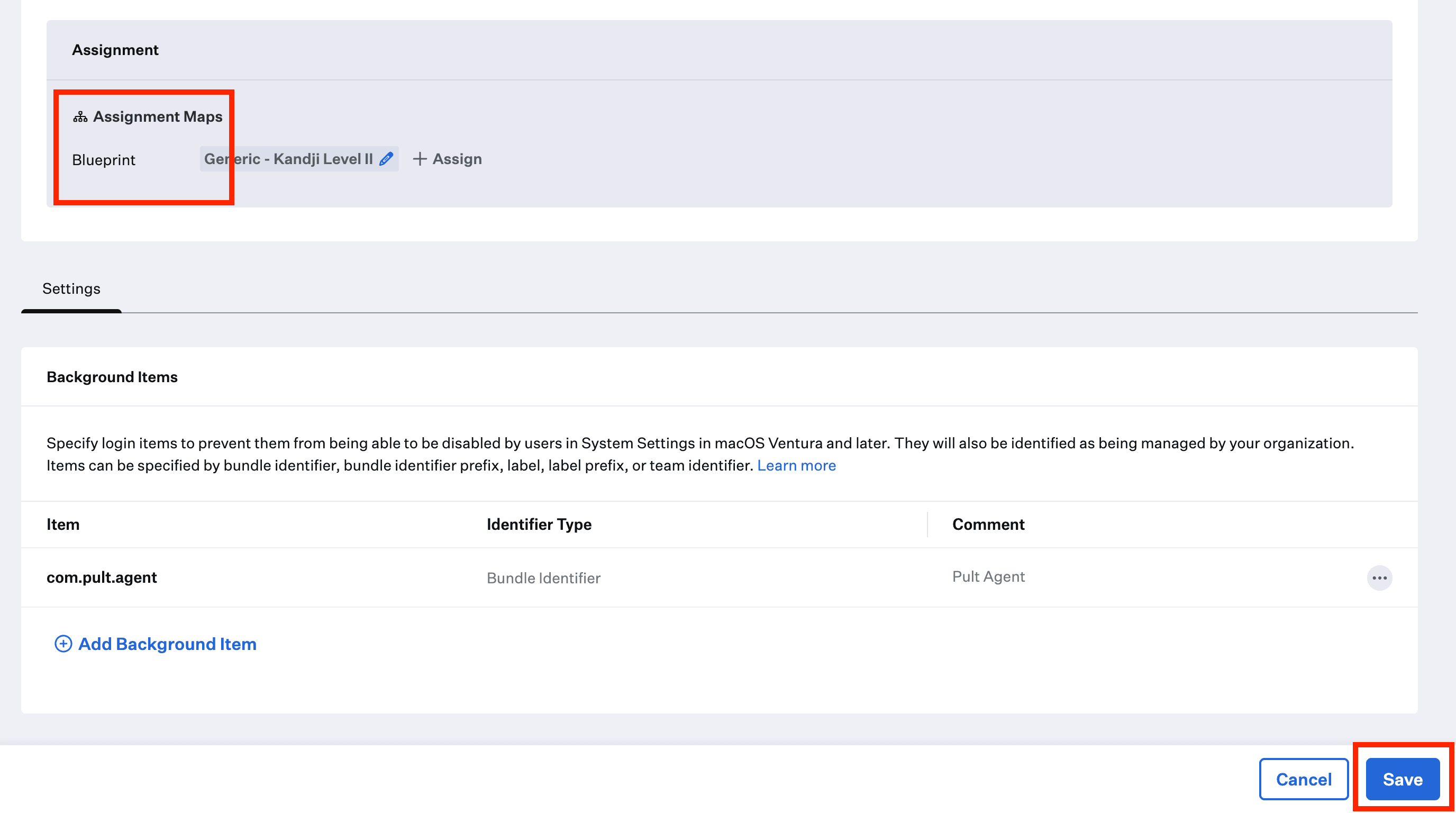
-
Under Assignment, use Assignment Maps to attach the profile to the correct Blueprint(s). Verify the background item appears as expected, then click Save.
Jamf Pro
- In Jamf Pro, go to Computers → Configuration Profiles → New.
- On the General tab, enter a name such as Pult Agent Auto-start and pick the appropriate distribution method.
- In the left sidebar, click + Add Payload and select Login Items.
- Add an entry:
- Bundle Identifier:
com.pult.agent - Action: Add to managed login items
- Bundle Identifier:
- On the Scope tab, target the desired computers, smart groups, or buildings. Click Save.
Verification
After the profile is deployed:
- On a target Mac, open System Settings → General → Login Items.
- The Pult Agent appears in the list, marked as managed by your organization.
- The user can't switch it off.
- Log out and back in. The Pult Agent icon appears in the menu bar without being opened.
Agent Doesn't Start at Login
Work through these checks in order:
- LaunchAgent missing. If
/Library/LaunchAgents/com.pult.agent.plistdoesn't exist, the agent was installed from the.dmgor from a.pkgolder than 0.2.10. Install the current.pkg. If the file exists but isn't owned byrootandwheel, macOS ignores it; rebuild the wrapper as described in Build the macOS MDM Package, Step 3. - Switched off by the user. If the file exists but the Pult Agent is switched off in System Settings → General → Login Items, deploy a managed login item as described above, or switch it back on.
- Both in place. Confirm
/Applications/Pult Agent.appexists, open it withopen -a "Pult Agent", and check the logs (see Troubleshooting).
Last updated on Sep 25, 2026, 12:14 PM