Jamf Pro Deployment (macOS)
Deploy the Pult Agent on macOS via Jamf Pro using a wrapper .pkg, an Extension Attribute for version detection, and a Smart Group-scoped Policy for continuous compliance.
This guide deploys the Pult Agent on macOS through Jamf Pro. It uses the wrapper .pkg you
build in Build the macOS MDM Package plus a
version-detecting Extension Attribute, a Smart Computer Group, and a Policy that re-installs the
agent whenever a Mac is missing it or running the wrong version.
Jamf Pro doesn't have a single "Custom App with audit script" object like Kandji or Mosyle. The same outcome -- detect missing or out-of-date installs and remediate automatically -- requires three Jamf objects: an Extension Attribute, a Smart Computer Group, and a Policy. This guide walks through all three.
Prerequisites
- A Jamf Pro instance with admin access.
- The Pult Agent wrapper
.pkg, built per Build the macOS MDM Package. - Macs already enrolled in Jamf Pro and reporting inventory.
Step 1: Upload the Package
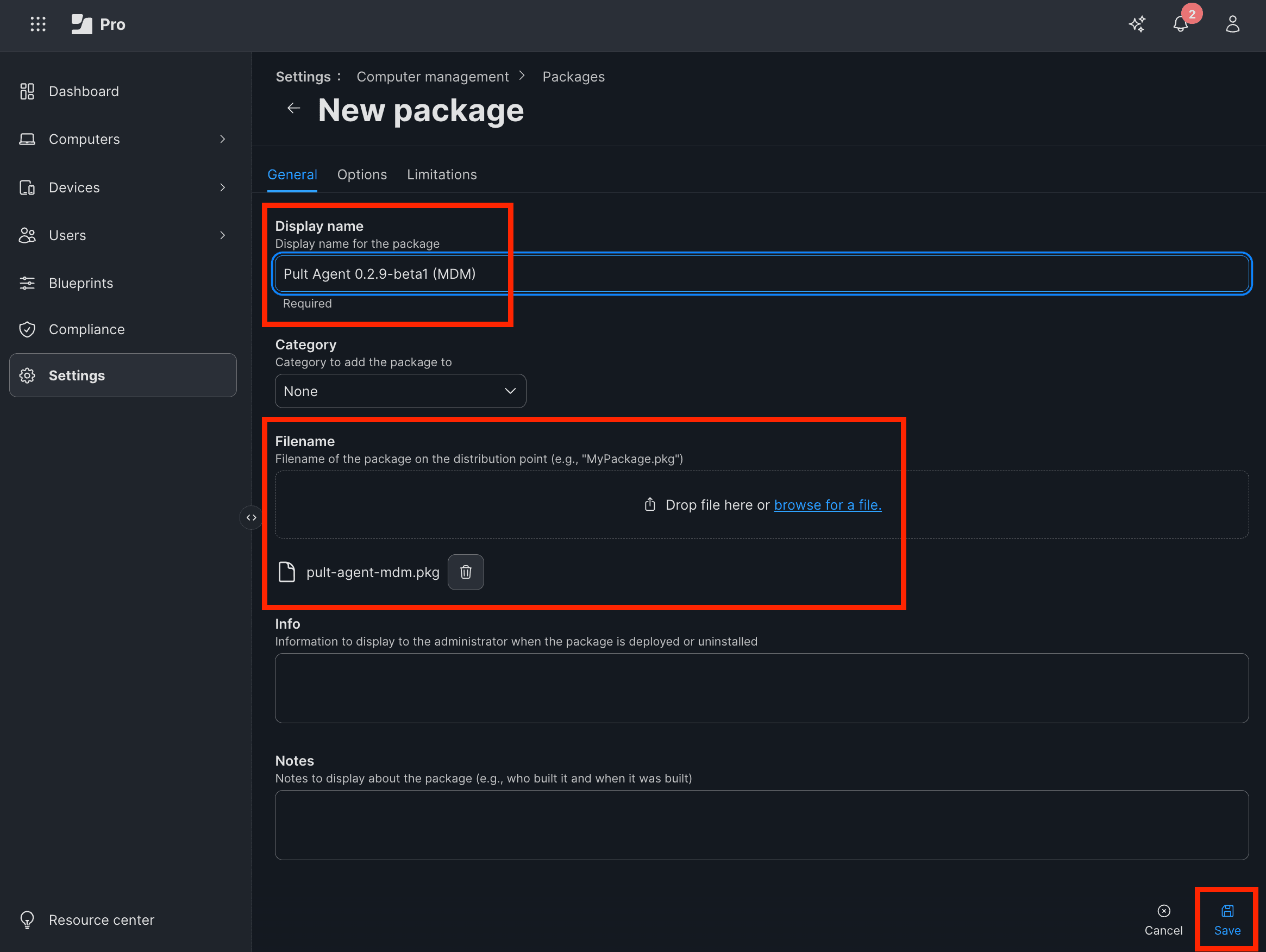
- In Jamf Pro, go to Settings → Computer management → Packages.
- Click + New.
- Upload your
pult-agent-mdm.pkg. Jamf Pro reads the metadata and pre-fills the display name and category. - Set the Display Name to something like
Pult Agent 0.2.10-beta1 (MDM)so version updates are easy to identify. - Click Save.
Step 2: Create the Version Detection Extension Attribute
The Extension Attribute (EA) is a script that runs on each Mac during inventory collection and
reports the installed Pult Agent version, or not_installed when the app is missing. Optionally
(REQUIRE_PKG_RECEIPT="true" at the top of the script) it reports no_pkg_receipt when the app is
present but has no macOS package receipt (pkgutil --pkg-info com.pult.agent), which means it was
installed manually from the .dmg, not through the .pkg. Those Macs never received the
LaunchAgent or the bootstrap postinstall and must still get the package.
-
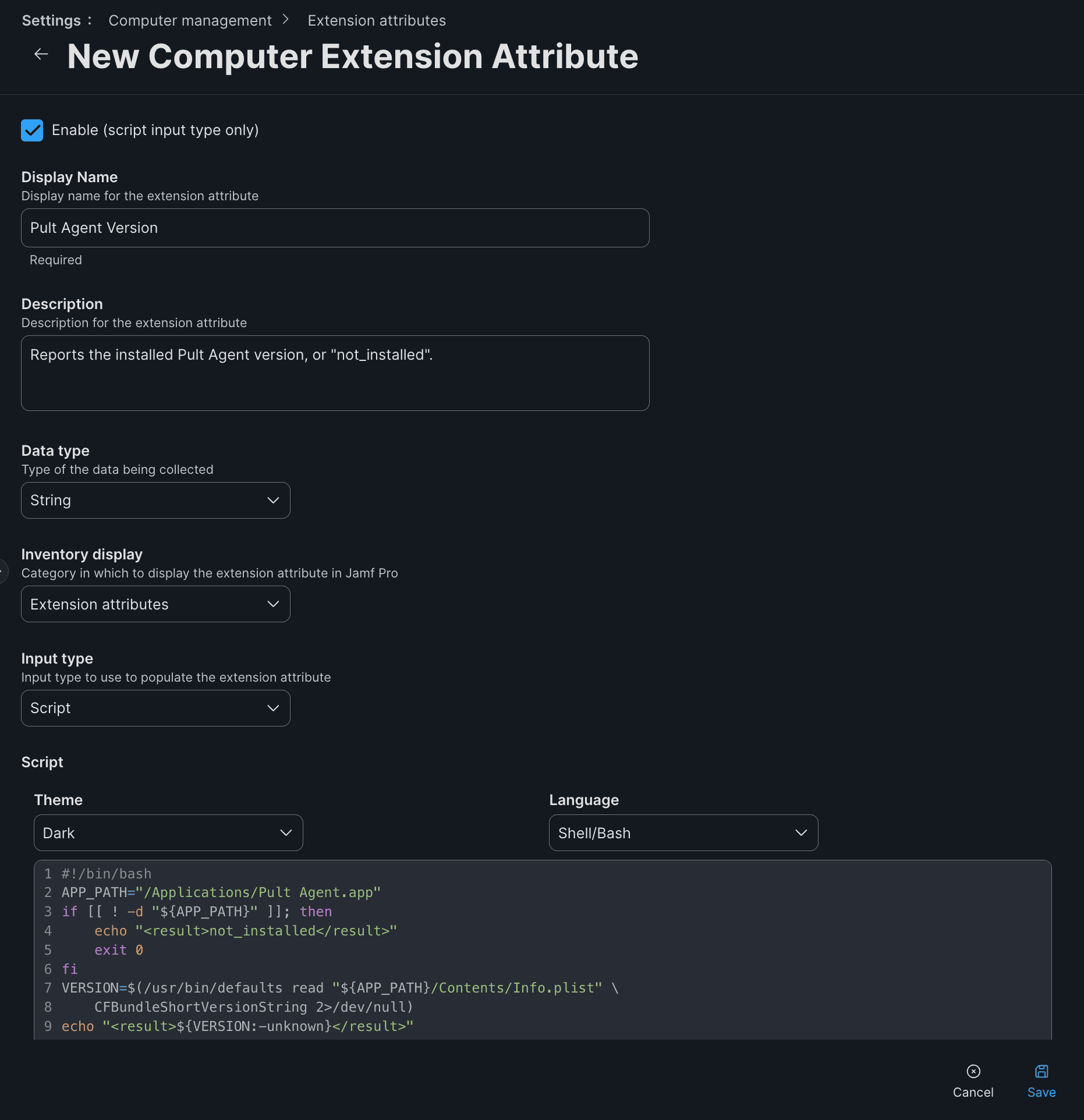
Go to Settings → Computer management → Extension Attributes.
-
Click + New.
-
Configure:
- Display Name:
Pult Agent Version - Description:
Reports the installed Pult Agent version, "no_pkg_receipt", "pkg_version_mismatch", or "not_installed". - Data Type:
String - Inventory Display:
Extension attributes - Input Type:
Script
- Display Name:
-
Paste this script:
#!/bin/bash APP_PATH="/Applications/Pult Agent.app" # Optional: report "no_pkg_receipt" for Macs that have the app but no macOS # package receipt for the Pult Agent .pkg (identifier com.pult.agent), i.e. # the agent was installed manually from the .dmg rather than through the .pkg. # # "false" (default) Report the app bundle version regardless of how the # agent was installed. # "true" Those Macs land in the Smart Group and still receive the .pkg # (system-wide LaunchAgent + bootstrap postinstall). REQUIRE_PKG_RECEIPT="false" PKG_ID="com.pult.agent" # Optional, only used with REQUIRE_PKG_RECEIPT="true": report # "pkg_version_mismatch" unless the receipt carries exactly this package # version. Set it to the version stamped on the wrapper .pkg to force a # one-time reinstall on Macs that already run the right app version. REQUIRED_PKG_VERSION="" if [[ ! -d "${APP_PATH}" ]]; then echo "<result>not_installed</result>" exit 0 fi if [[ "${REQUIRE_PKG_RECEIPT}" == "true" ]]; then # Read the "version:" line of the receipt. Empty when there is no receipt. PKG_VERSION="" while read -r key value; do if [[ "${key}" == "version:" ]]; then PKG_VERSION="${value}" fi done < <(/usr/sbin/pkgutil --pkg-info "${PKG_ID}" 2>/dev/null) if [[ -z "${PKG_VERSION}" ]]; then echo "<result>no_pkg_receipt</result>" exit 0 fi if [[ -n "${REQUIRED_PKG_VERSION}" && "${PKG_VERSION}" != "${REQUIRED_PKG_VERSION}" ]]; then echo "<result>pkg_version_mismatch</result>" exit 0 fi fi VERSION=$(/usr/bin/defaults read "${APP_PATH}/Contents/Info.plist" \ CFBundleShortVersionString 2>/dev/null) echo "<result>${VERSION:-unknown}</result>" -
Click Save.
The EA populates on each Mac at the next inventory check-in (or you can force a check-in with
sudo jamf recon on a test Mac).
Step 3: Create the Smart Computer Group
The Smart Group selects every Mac that needs the package installed -- either because the agent is missing, or because the version doesn't match the one you're rolling out.
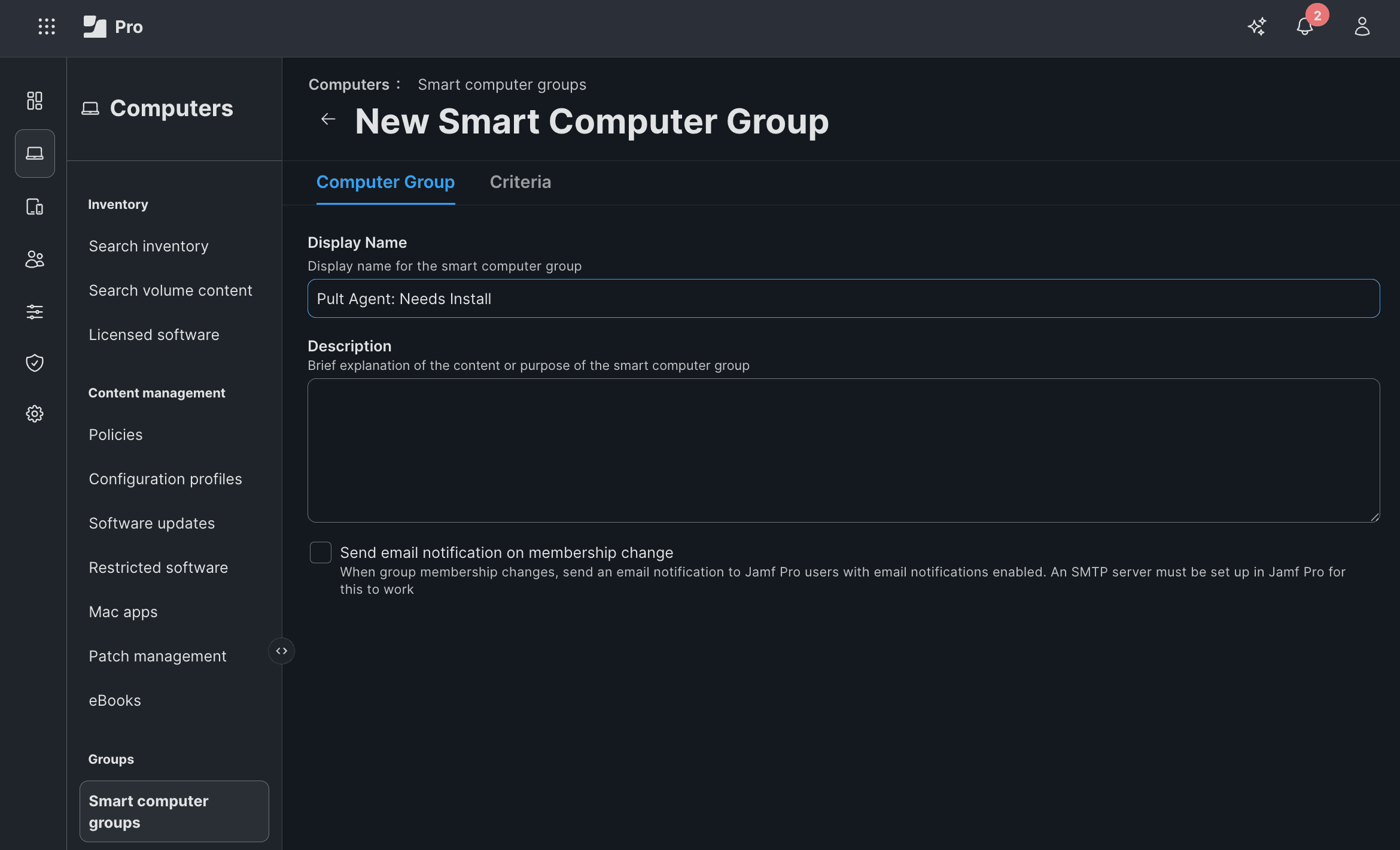
- Go to Computers → Smart Computer Groups.
- Click + New.
- Display Name:
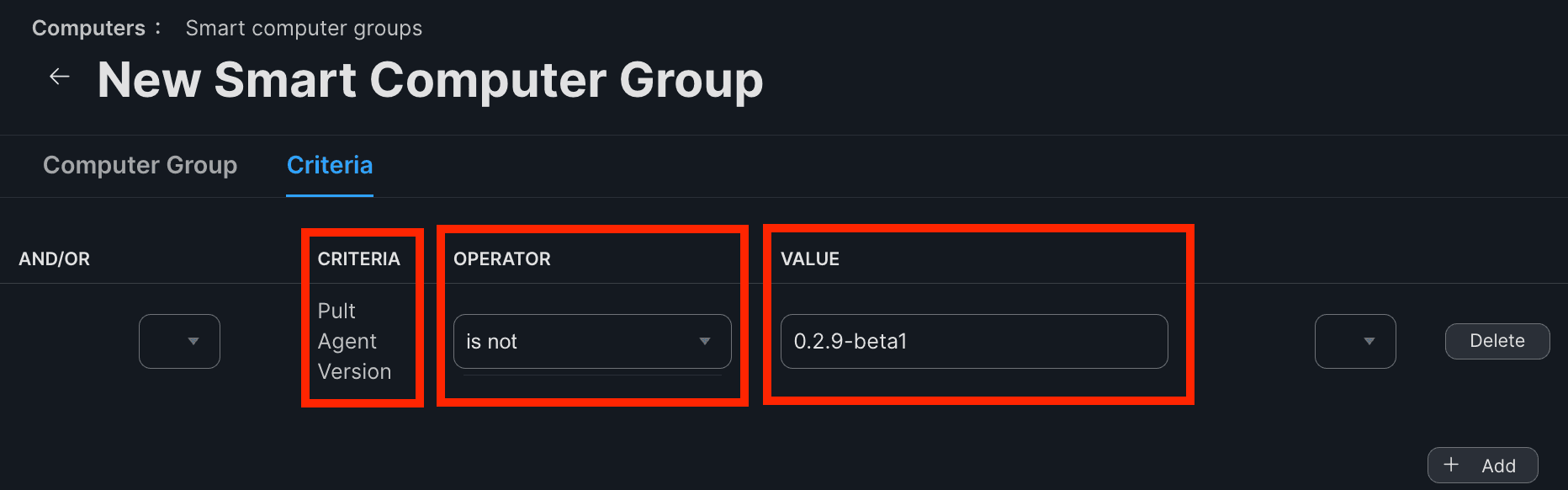
Pult Agent: Needs Install. - On the Criteria tab, click + Add. The default list only shows commonly-used and recently-used criteria; since the Pult Agent Version EA is brand new, click Show Advanced Criteria to reveal the full list, then select it.
- Configure the criterion:
- Operator:
is not - Value: the agent version you're rolling out, e.g.
0.2.10-beta1
- Operator:
- Click Save.
A Mac is in this group whenever its Pult Agent Version EA returns anything other than
0.2.10-beta1. That covers not_installed (missing), older versions (out of date), and,
with REQUIRE_PKG_RECEIPT="true", no_pkg_receipt (installed manually from the .dmg, never got
the .pkg) and pkg_version_mismatch (receipt older than REQUIRED_PKG_VERSION). Once the package
installs successfully, the EA flips to 0.2.10-beta1 and the Mac falls out of the group
automatically.
Tip: you have two rollout-scope levers. As written, the Smart Group selects every Mac whose Pult Agent version doesn't match. In a phased rollout you'll want to narrow the audience -- Jamf gives you two places to do that, and they compose with and:
- Smart Group criterion: add a second criterion here (e.g. Computer Group member of "Pult Agent Pilot", joined with and) so the group only contains drifted Macs within a specific cohort.
- Policy Scope (configured in Step 4): restrict the policy itself to specific Macs, Computer Groups, users, or buildings without touching the drift-detection logic. Often the simplest choice for cohort-based rollouts.
Either way, expand the rollout by editing the cohort group's membership or the Policy's Scope tab; new Macs are picked up at their next check-in.
When you roll out a new agent version, update the version value in this Smart Group's criterion. Macs running the previous version then fall back into scope and pick up the new package automatically.
Step 4: Create the Policy
The Policy installs the wrapper package on every Mac in the Smart Group.
- Go to Computers → Policies.
- Click + New.
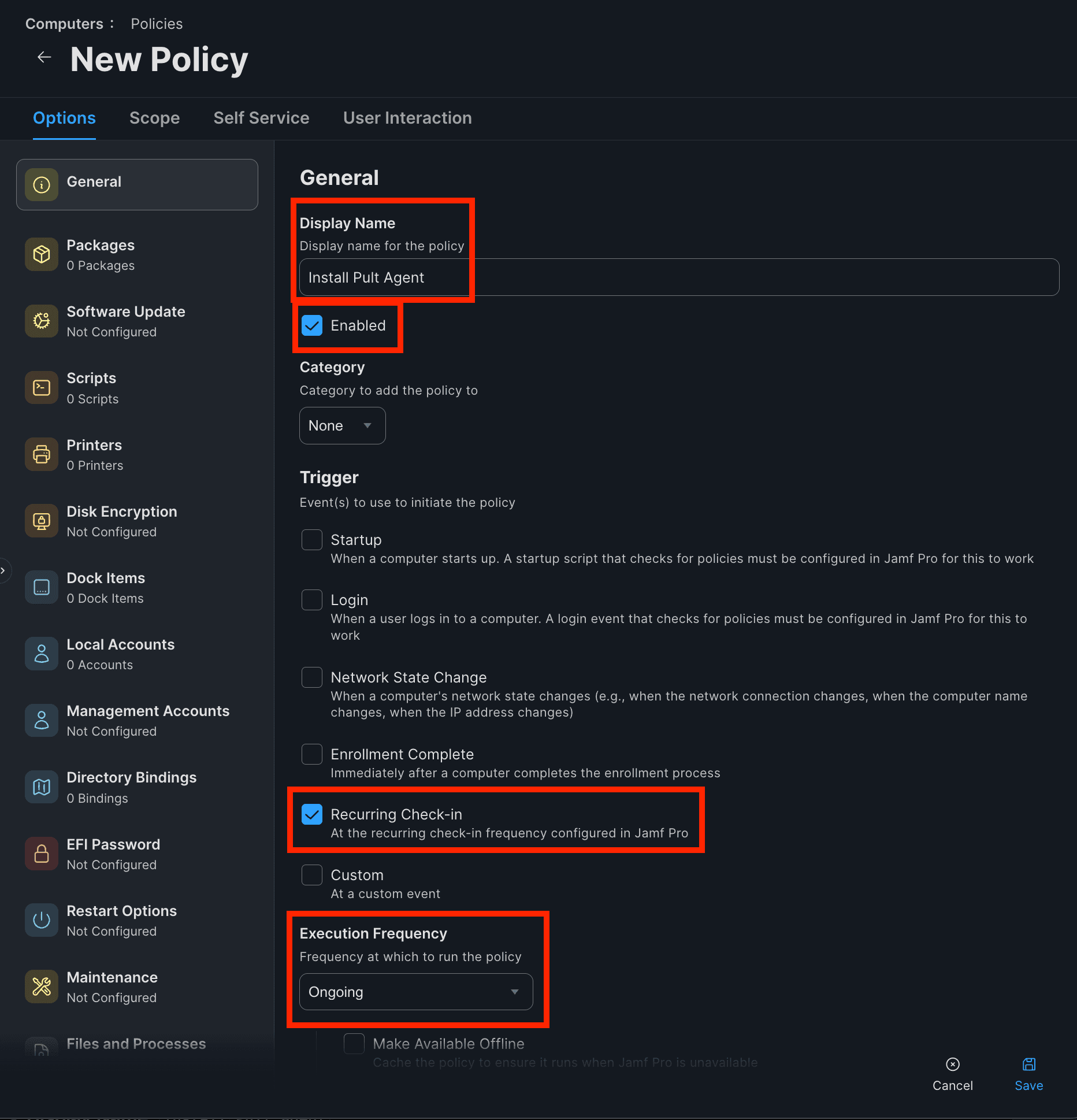
- General tab:
- Display Name:
Install Pult Agent - Trigger: check Recurring Check-in
- Execution Frequency:
Ongoing
- Display Name:
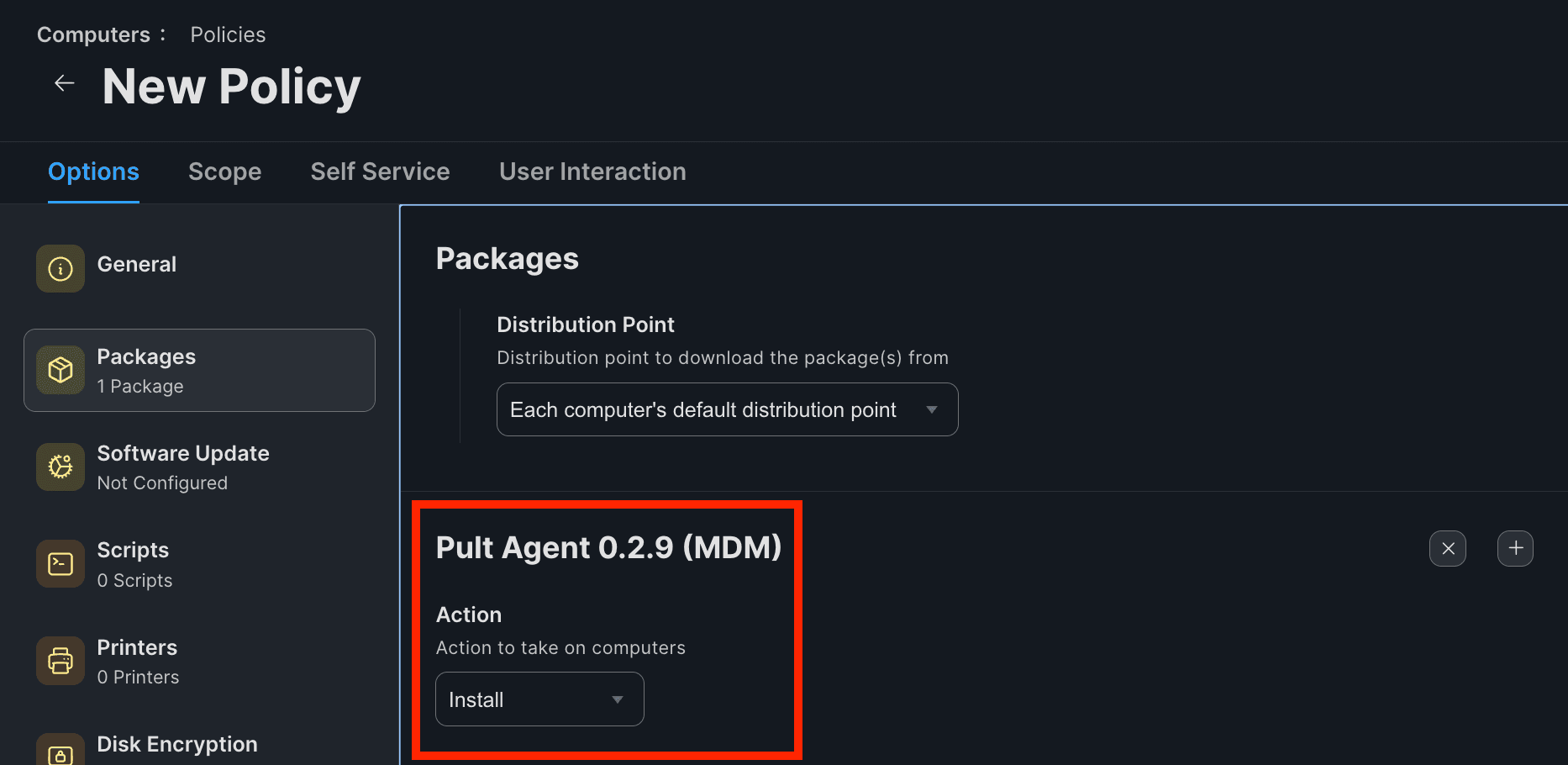
- Packages tab: click Configure, add your wrapper package, set Action to
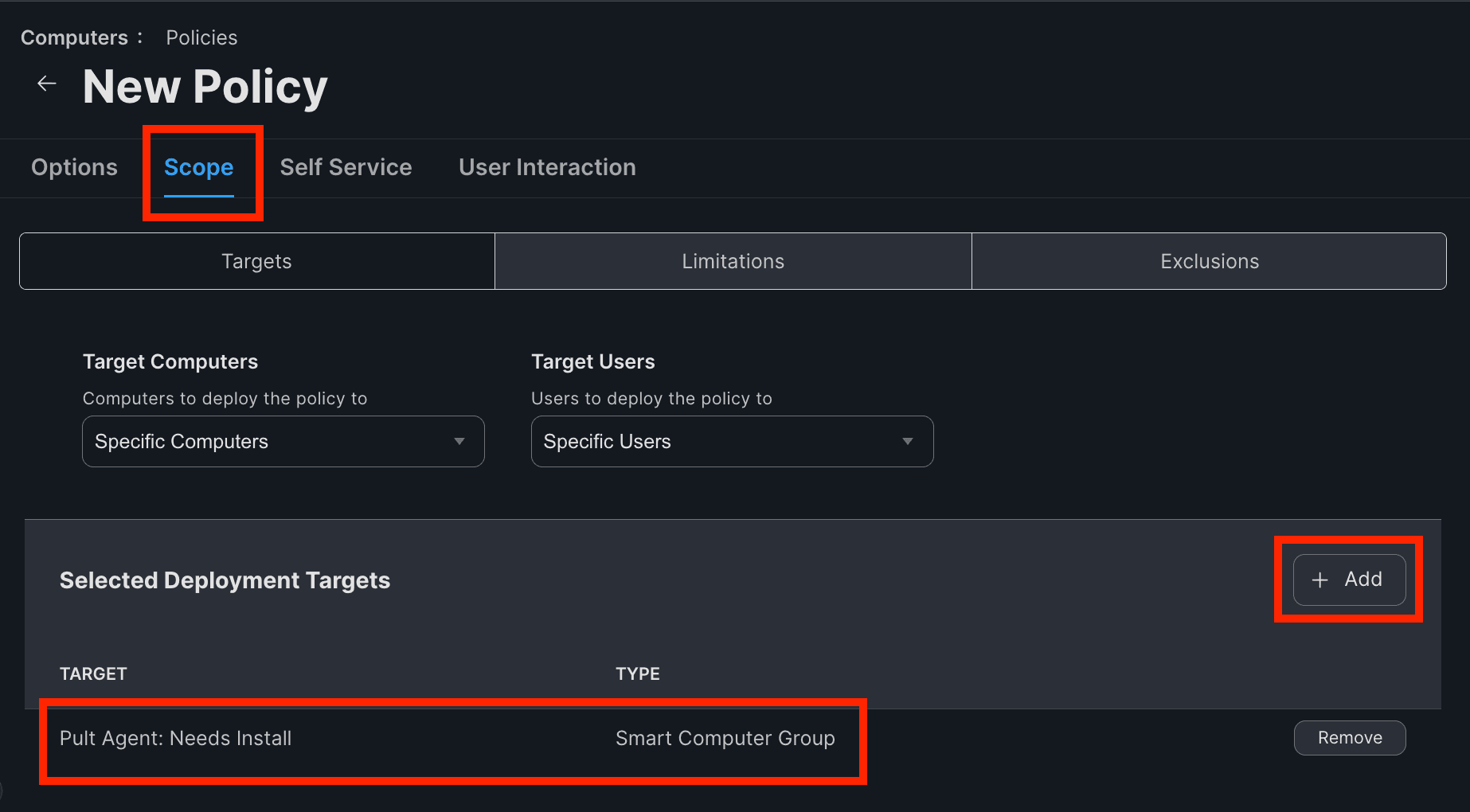
Install. - Scope tab: scope the policy to the Pult Agent: Needs Install Smart Group from Step 3.
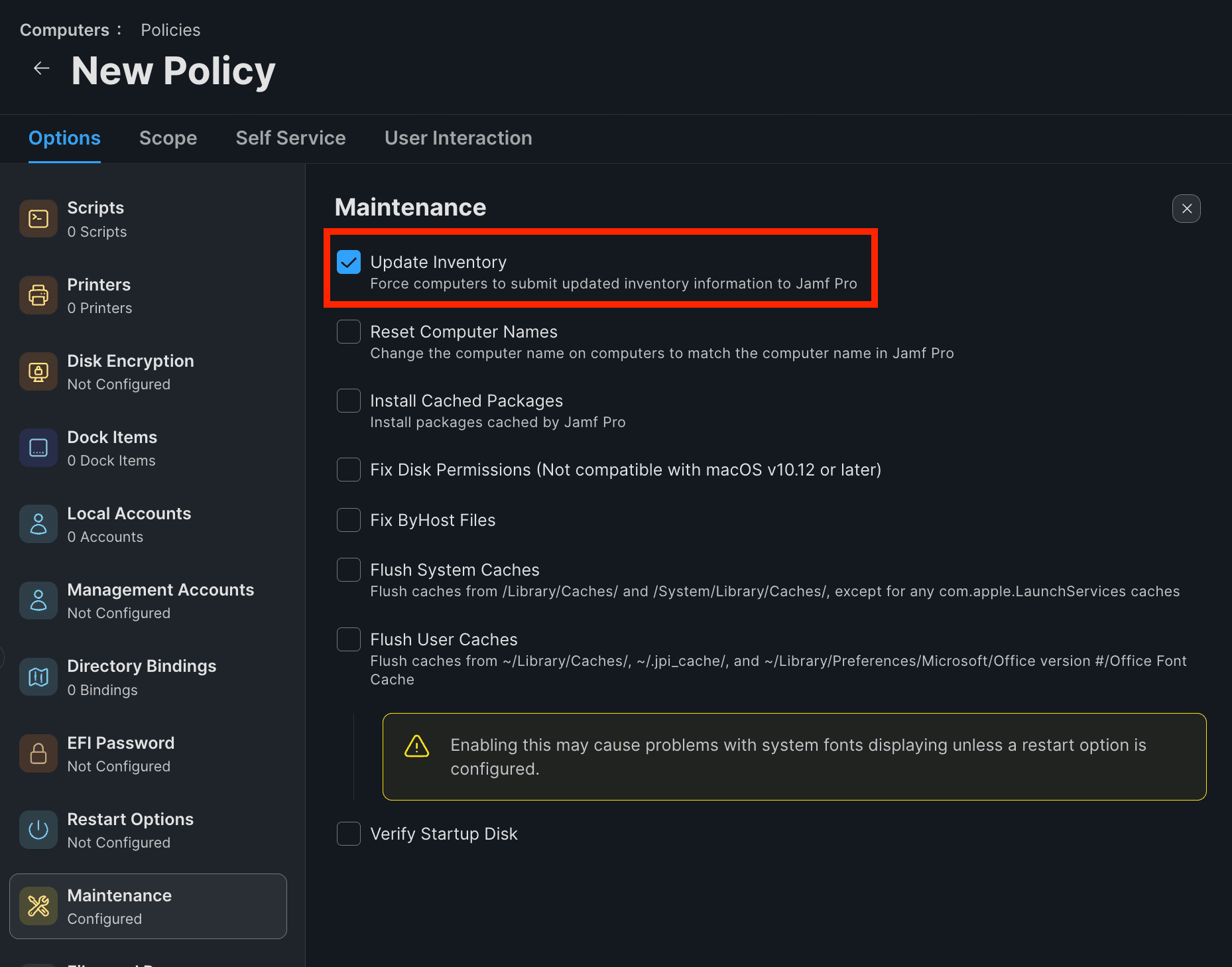
- Maintenance tab (recommended): check Update Inventory so the EA refreshes immediately after install and the Mac falls out of scope on the next check-in.
- Click Save.
Why "Ongoing" frequency
Ongoing lets the policy run every time the Mac checks in and is in the Smart Group's scope.
Because the Smart Group only contains Macs missing the right version, the policy only actually fires
when remediation is needed. After install, the EA reports the new version, the Mac leaves the Smart
Group, and no further installs happen until the next version drift.
Step 5: Configure Managed Login Items
The wrapper .pkg already sets up launch at login: it installs the LaunchAgent together with the
agent and the bootstrap token. Push a separate Configuration Profile that adds Pult Agent as a
managed login item, so users can't switch launch at login off.
See macOS Auto-Start for the Jamf Pro steps.
Step 6: Verify
- On a test Mac, force a check-in:
sudo jamf policy - Confirm the package installs:
/Applications/Pult Agent.appexists.- The Pult Agent tray icon appears in the menu bar.
- Check the Mac's record in Jamf Pro -- the Pult Agent Version EA should show
0.2.10-beta1after the next inventory update. - In the Pult Dashboard, go to Settings → Presence → Device Authentication. A Pending Device Request should appear for the Mac.
- Approve the request to complete enrollment.
Troubleshooting
| Issue | Solution |
|---|---|
| Smart Group never populates | The EA only updates after an inventory check-in. Run sudo jamf recon on a test Mac to force-collect inventory, then re-check the group's membership. |
| Policy runs but agent doesn't enroll | The bootstrap token is written when the postinstall runs as part of the package install. Confirm a user was logged in at install time; otherwise the token is skipped. |
| Policy keeps re-running on the same Mac | Confirm the EA reports the deployed version after install. If it still reports the old version, check that Update Inventory is enabled in the Policy's Maintenance tab. |
| New version rollout doesn't reach existing Macs | Update the version value in the Smart Group's criterion. Macs running the previous version will re-enter the group at their next check-in. |
| Macs that already had the agent never get the package | They were installed manually from the .dmg, so there is no package receipt and an app-version-only check reports them compliant. Set REQUIRE_PKG_RECEIPT="true" in the EA so it reports no_pkg_receipt for those Macs, which puts them in the Smart Group. |
| Token expired error in agent logs | Bootstrap tokens have an expiration. If your wrapper .pkg references an expired token, rebuild the wrapper with a fresh token and re-upload the new package version. |
Last updated on Sep 25, 2026, 12:14 PM