macOS Managed Login Items
Configure the Pult Agent as a managed login item on macOS via MDM to ensure it auto-starts.
On macOS, you can use your MDM to configure the Pult Agent as a managed login item. This ensures the agent starts automatically at user login and prevents users from disabling it.
Why This Is Needed
Unlike Windows (where the MSI installer registers auto-start via the registry), macOS requires a separate MDM configuration profile to manage login items. Without this profile, users could disable the agent from starting at login.
Bundle Identifier
The Pult Agent's bundle identifier is: com.pult.agent
This identifier is used in all MDM configuration profiles below.
Microsoft Intune
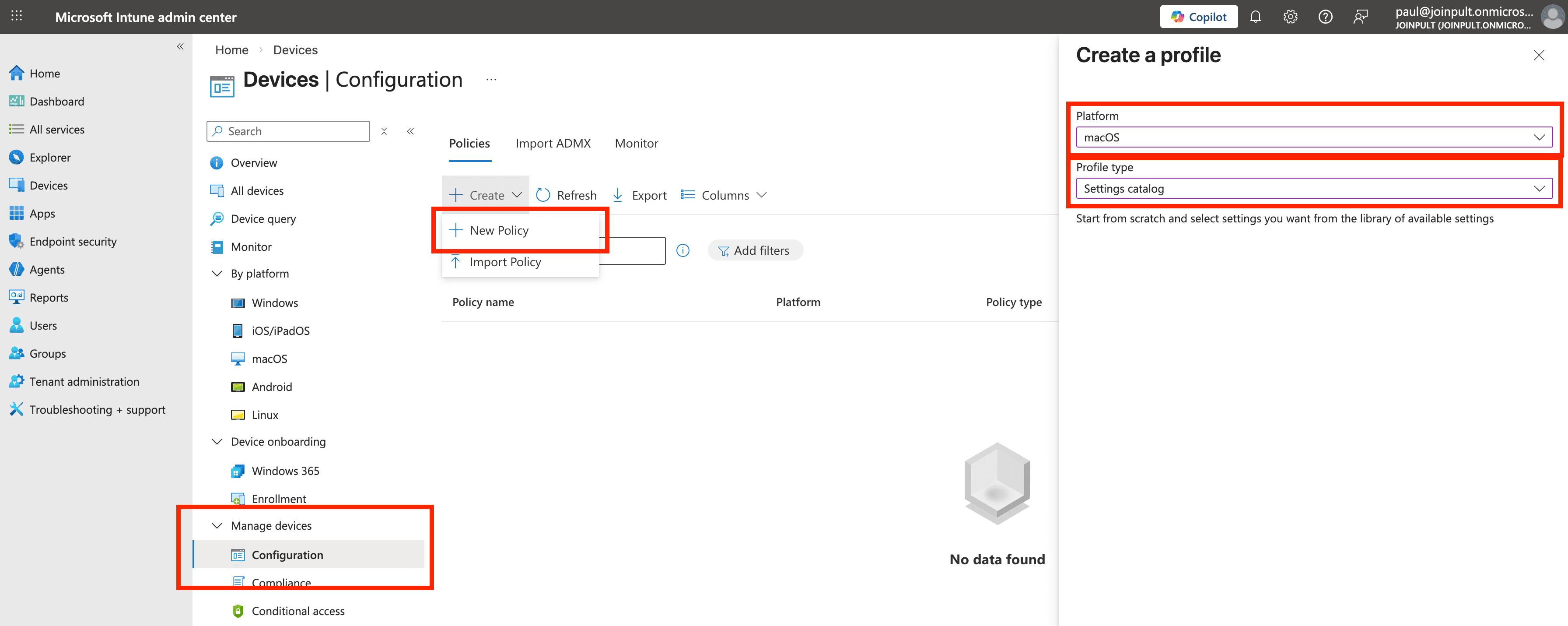
- In the Microsoft Intune admin center, open Devices → Configuration. Under Manage devices, click Create → New policy. Set Platform to macOS and Profile type to Settings catalog.
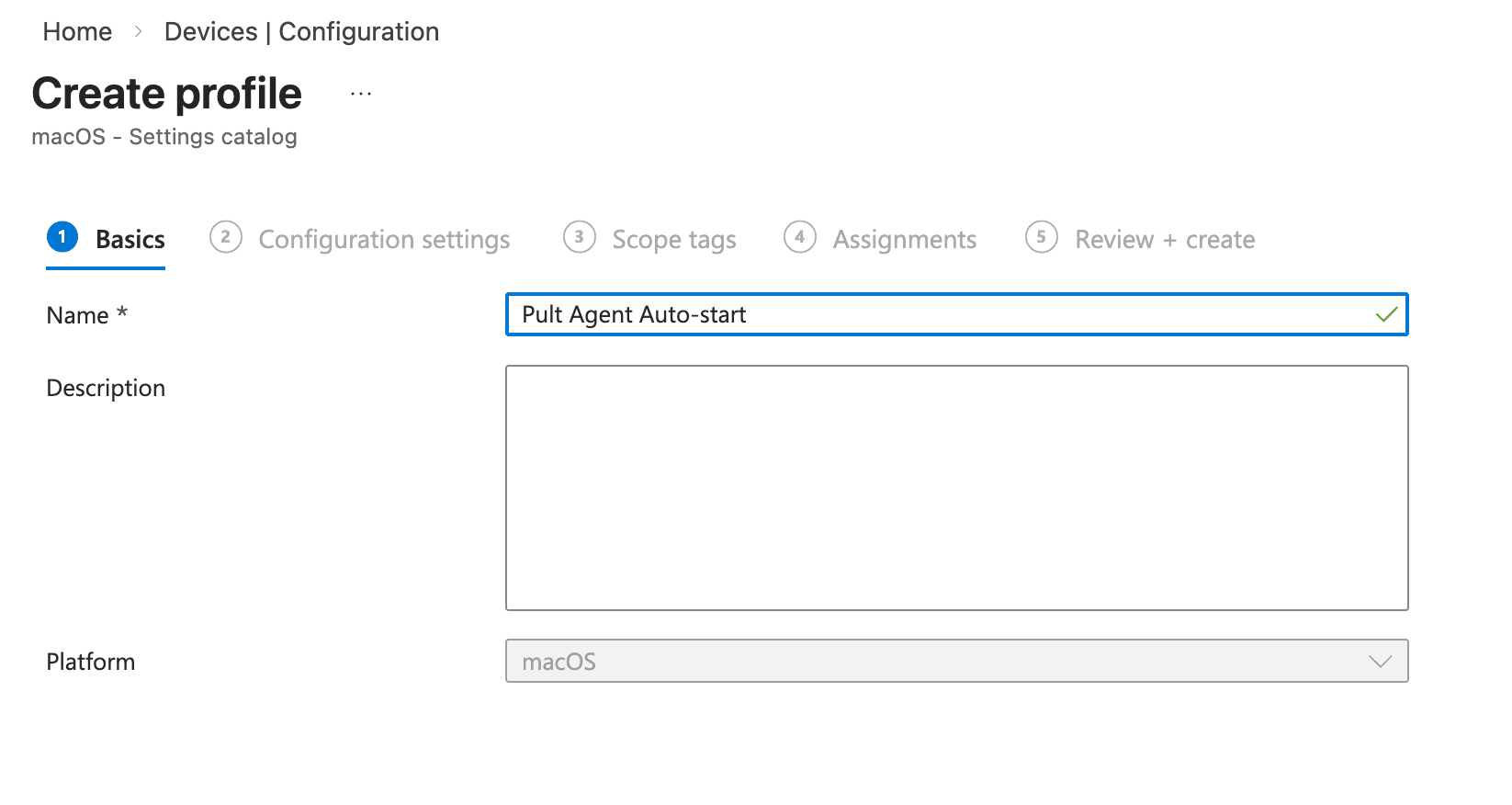
- On the Basics tab, enter a name such as Pult Agent Auto-start. Optionally add a description.
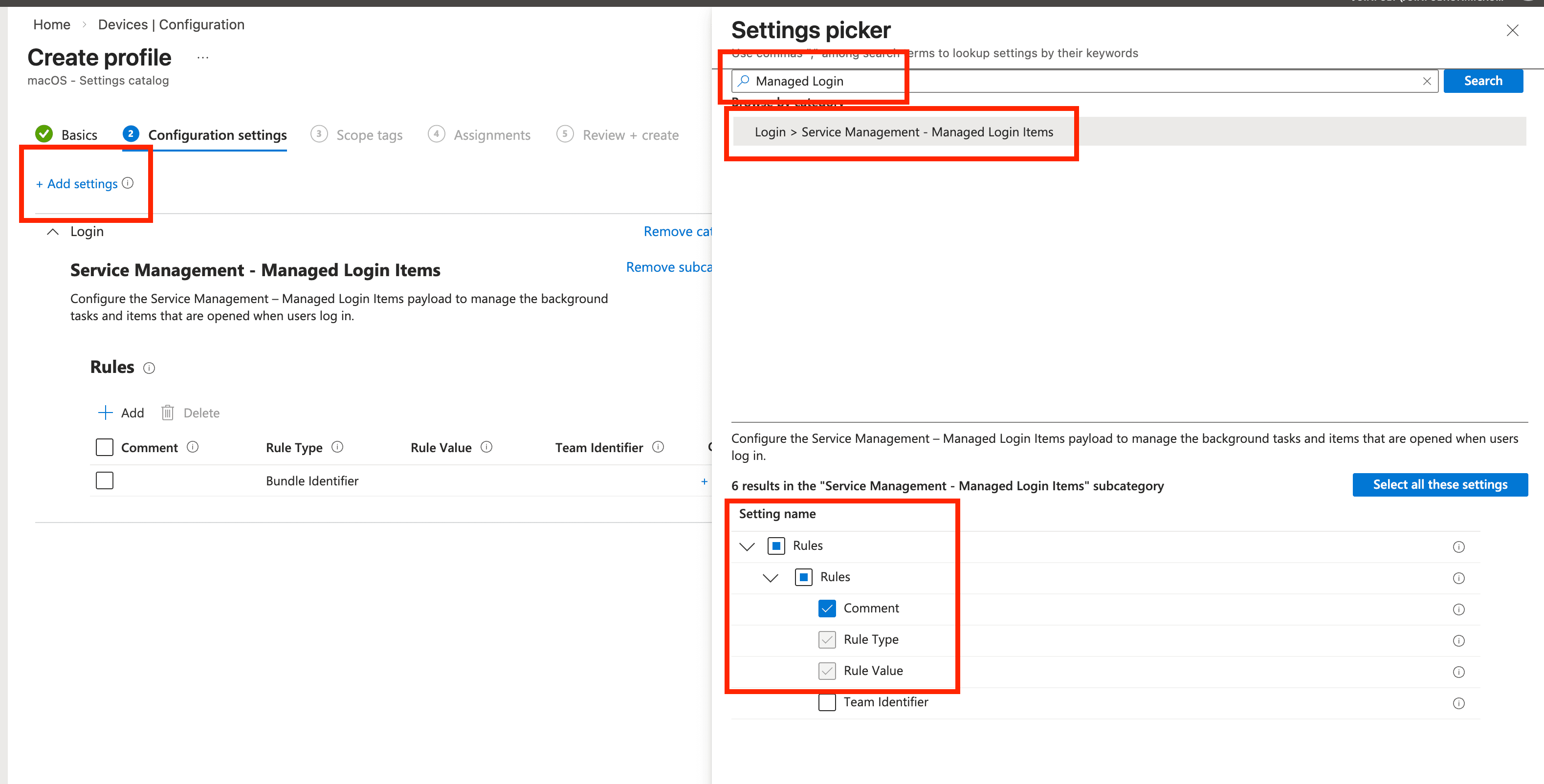
- On Configuration settings, click + Add settings. In the settings picker, search for Managed Login, then select Login → Service Management -- Managed Login Items. Enable Comment, Rule Type, and Rule Value.
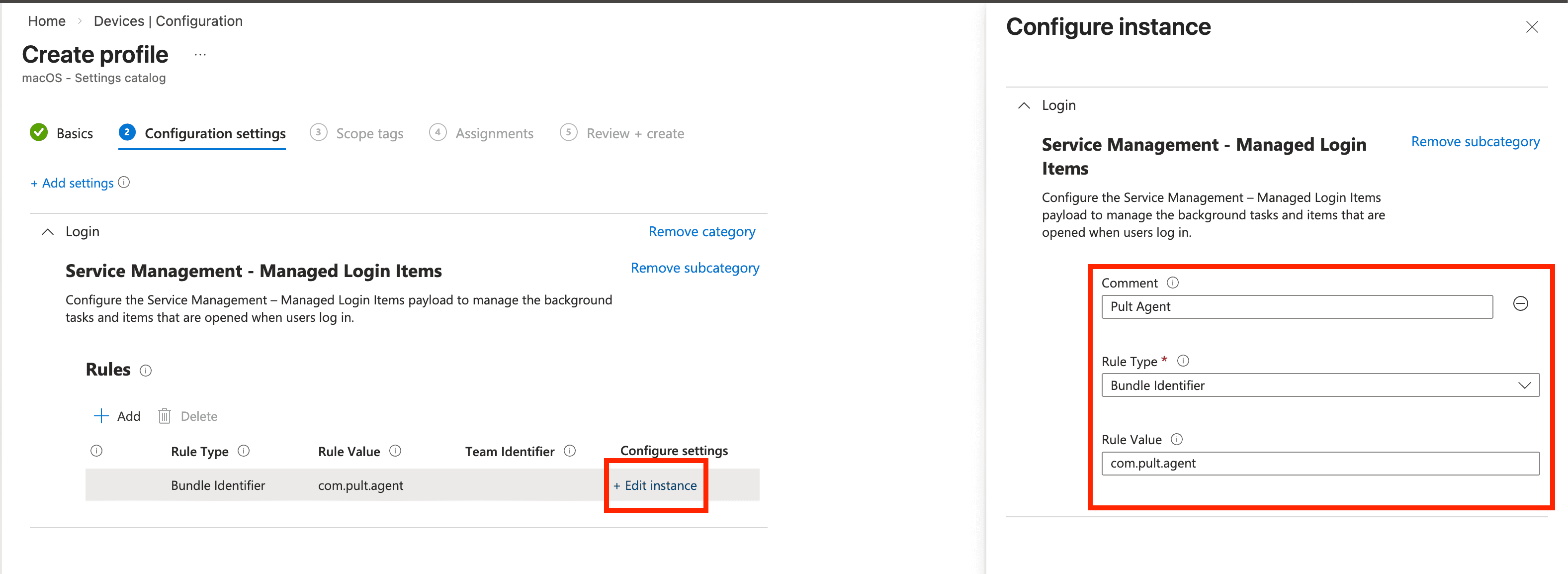
- Click + Edit instance and configure the rule:
- Comment:
Pult Agent - Rule Type: Bundle Identifier
- Rule Value:
com.pult.agent
- Comment:
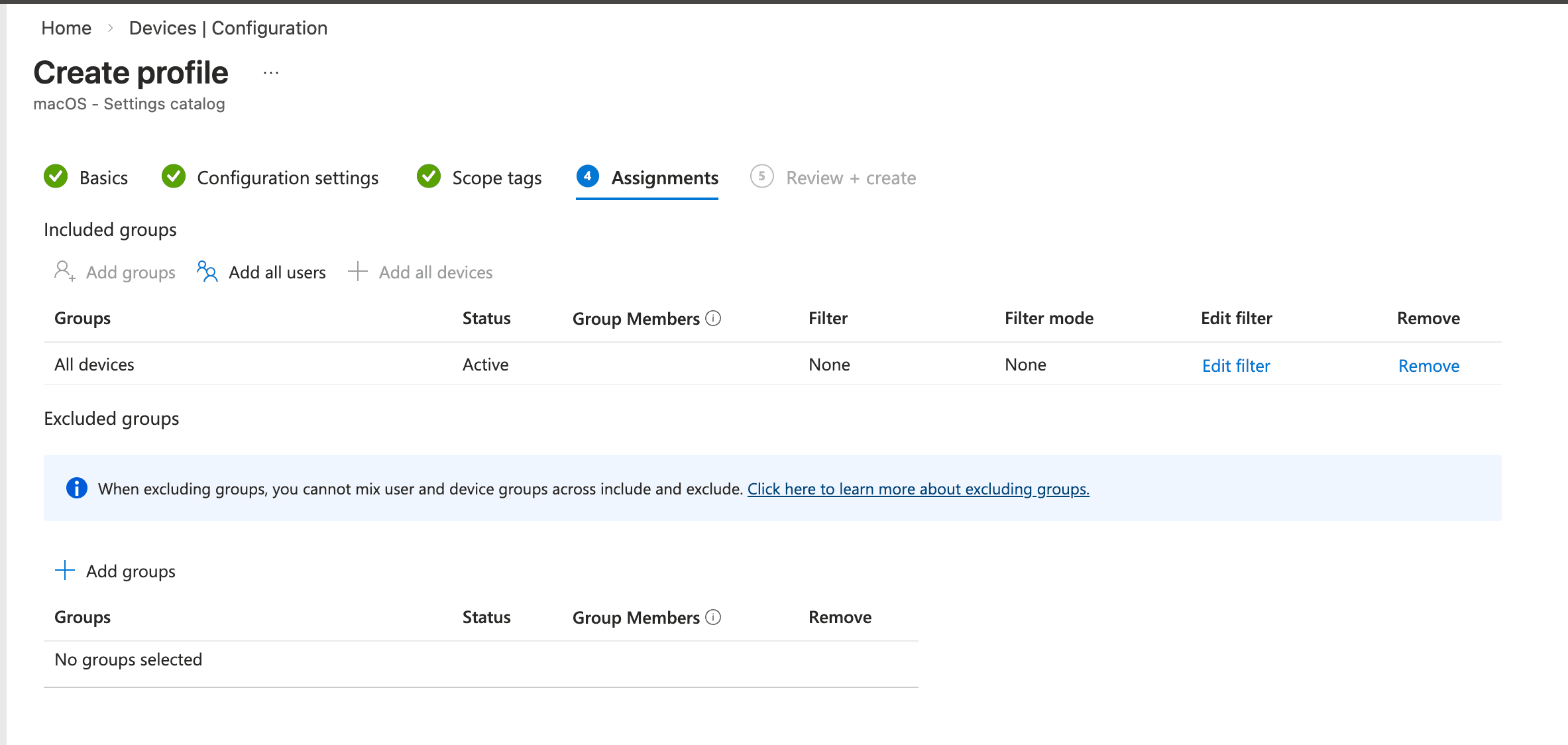
- Continue through Scope tags (optional). On Assignments, choose device or user groups (for example All devices). Finish Review + create.
Kandji
-
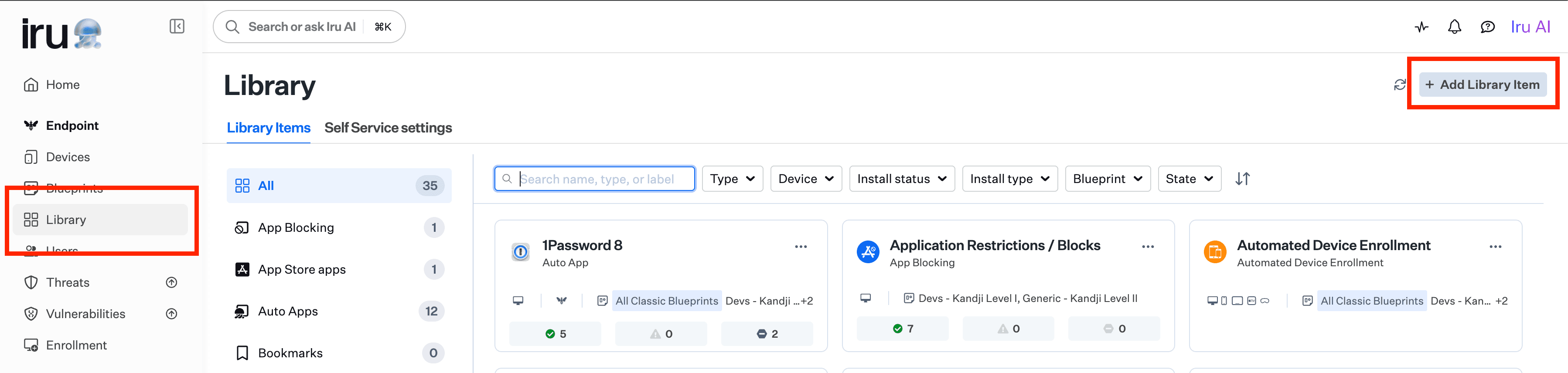
In Kandji, open Library and click + Add Library Item.
-
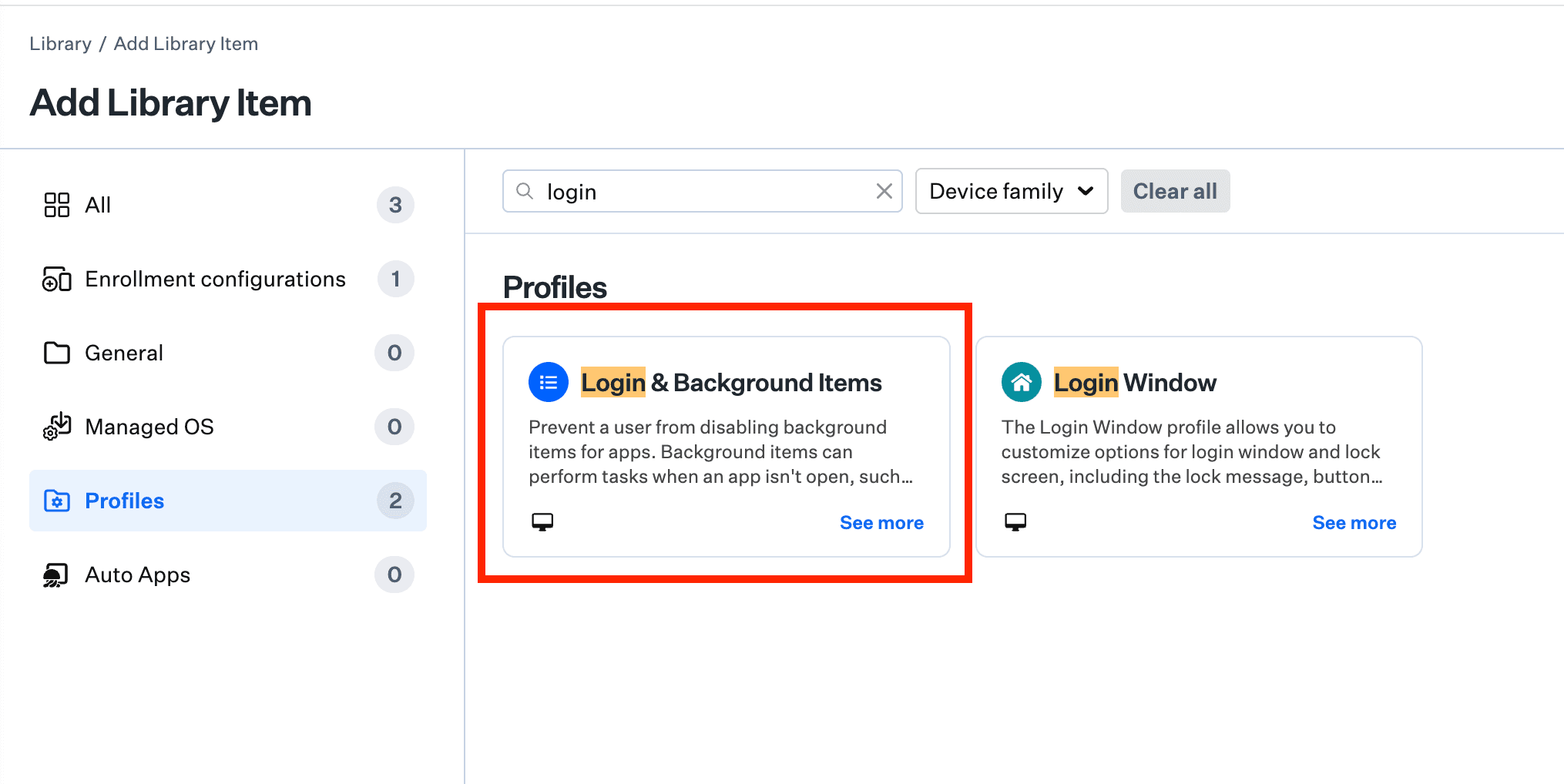
Search for login and pick Login & Background Items under Profiles.
-
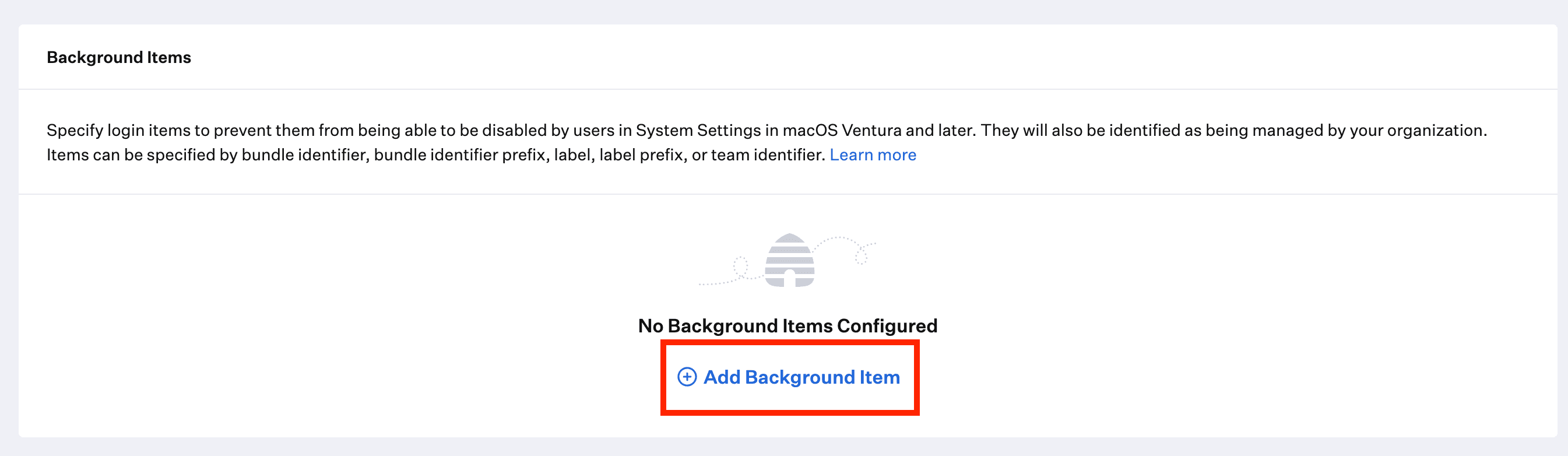
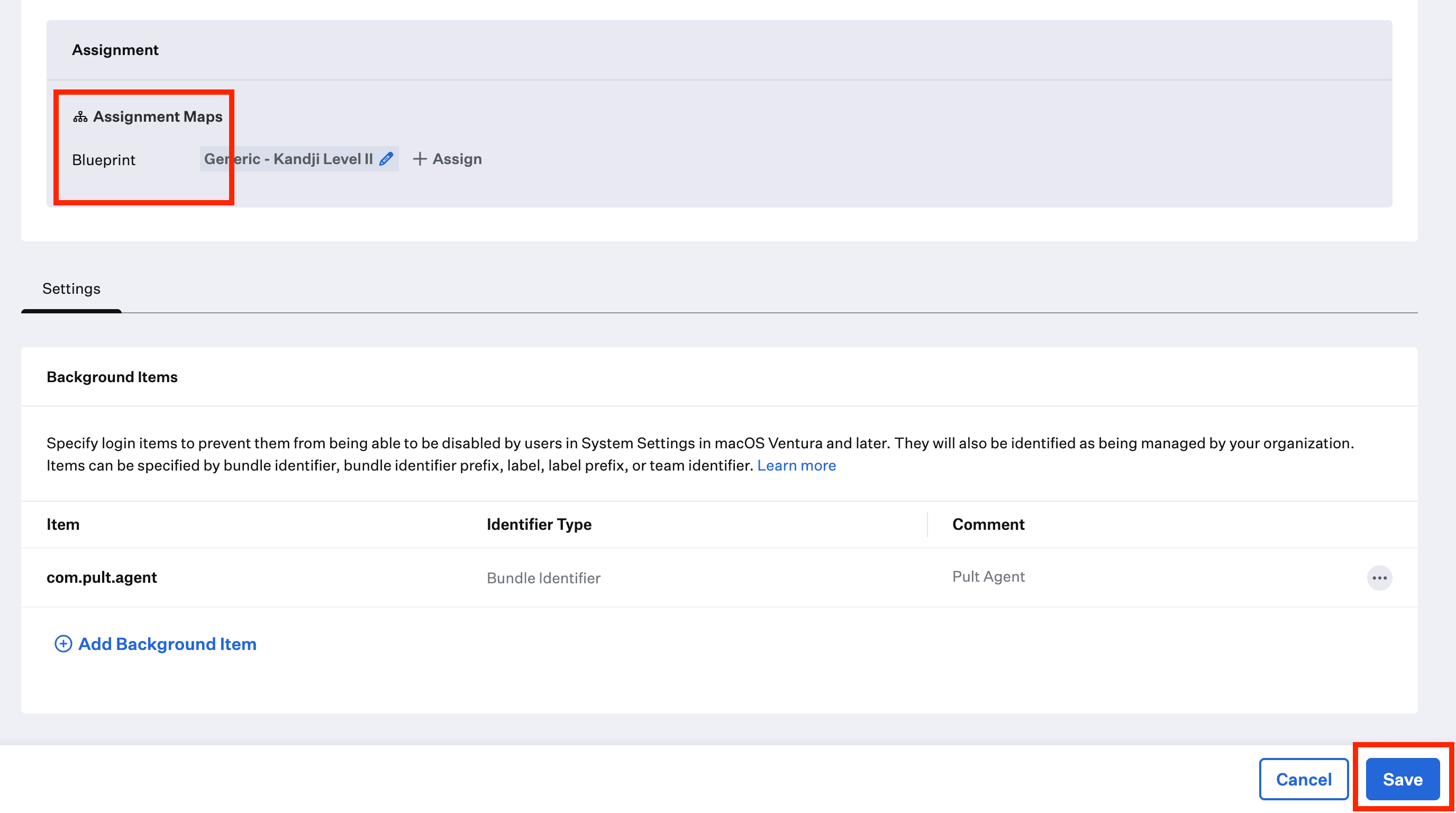
Scroll to Background Items and click Add Background Item.
-
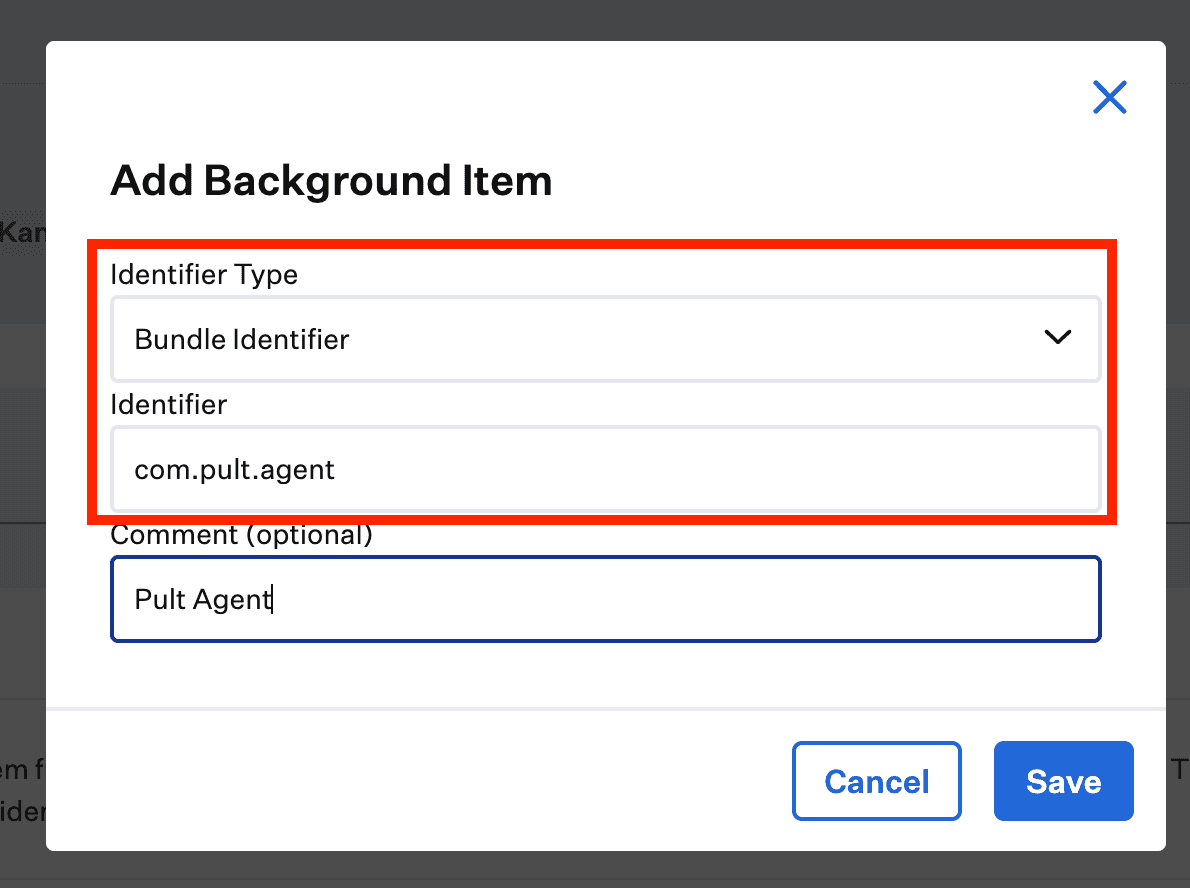
In the Add Background Item dialog, set:
- Identifier Type: Bundle Identifier
- Identifier:
com.pult.agent - Comment (optional):
Pult Agent
Save the dialog.
-
Under Assignment, use Assignment Maps to attach the profile to the correct Blueprint(s). Verify the background item appears as expected, then click Save.
Jamf Pro
- In Jamf Pro, go to Computers → Configuration Profiles → New.
- On the General tab, enter a name such as Pult Agent Auto-start and pick the appropriate distribution method.
- In the left sidebar, click + Add Payload and select Login Items.
- Add an entry:
- Bundle Identifier:
com.pult.agent - Action: Add to managed login items
- Bundle Identifier:
- On the Scope tab, target the desired computers, smart groups, or buildings. Click Save.
Verification
After the profile is deployed:
- On a target Mac, open System Settings → General → Login Items.
- The Pult Agent should appear in the list of managed items, marked as managed by your organization.
- The user should not be able to disable it.
Last updated on May 13, 2026, 12:37 PM